
The Software Behind Every Sound You Hear
When music plays, a video call connects, or a notification chimes, an audio driver is doing precise, sample-accurate work in the background to make it happen.
What It Does
Common Symptoms
Quick Fixes
Sample-Accurate Routing
Moves digital audio samples in both directions — microphone in, speakers out — keeping everything in perfect sync.
Mixing & Device Selection
Manages multiple audio sources, routes to the correct output, and selects the right default device.
Latency & Buffering
Controls timing and buffer sizes to prevent crackling, lag, and sync issues on calls.
Most Common Topics
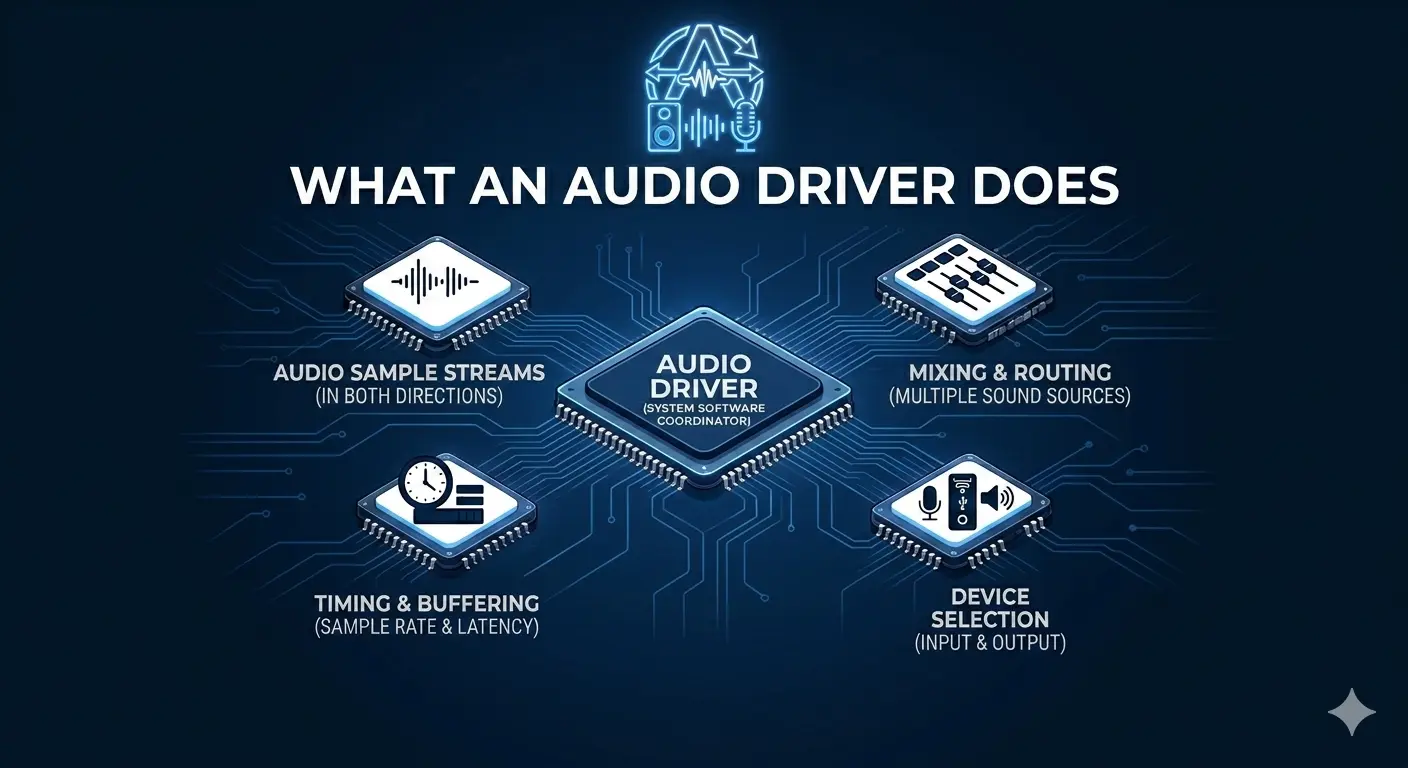
What an Audio Driver Does
An audio driver moves streams of digital samples between your applications and the sound hardware, keeping everything in time. It manages sample rates, mixes multiple sources, routes audio to the right output, and applies any hardware effects your device supports.
Get it right and sound is effortless. Get it slightly wrong and you hear crackling, lag, or a microphone that everybody says is too quiet.
Carries digital audio samples in both directions
Mixes and routes multiple sound sources
Manages sample rate, latency, and buffering
Selects the correct input and output device
Common Sound Problems
No sound at all, sound from the wrong device, crackling during calls, or a microphone nobody can hear — almost all of these trace back to the driver or to which device is selected as the default.
Reinstalling the audio driver from your laptop or motherboard maker, then confirming the right playback and recording devices are set as default, clears up the great majority of everyday audio issues.
Fix it in five careful steps
- 1.
Check the default device — Open your sound settings and confirm the output and input devices you expect are actually selected as the defaults.
- 2.
Test with a second app — If one application is silent but another plays audio normally, the problem is likely an app setting rather than the driver.
- 3.
Reinstall the audio driver — Uninstall the audio device in Device Manager, restart the computer, then install the manufacturer's latest audio package.
- 4.
Check enhancements and levels — Disable audio enhancements and confirm that nothing is muted or turned down in the volume mixer.
- 5.
Restart and verify — Reboot the computer, play a test sound, and record a short microphone clip to confirm both playback and recording work correctly.
If anything here feels out of your depth, that's a normal feeling. A local technician can run this exact routine in minutes, and nothing on this page requires special tools.
Common Device Manager codes
These are the most common Device Manager errors and what they usually mean.
| Code | What It Means In Plain English | The Usual Fix |
|---|---|---|
| Code 28 | No driver is installed for the device. | Install the correct driver from the manufacturer. |
| Code 10 | The device cannot start. | Reinstall the driver and restart the computer. |
| Code 45 | The device isn't currently connected. | Reconnect the device and check cables or power. |
| Code 19 | The device's configuration information is damaged. | Uninstall the device and let Windows reinstall it. |
Frequently Asked Questions
The questions readers ask most about audio drivers, microphones, speakers, and sound problems.
Start by checking the selected output device. Your computer may be sending audio to headphones, a monitor, or another device that is no longer connected. If the correct output device is selected and there's still no sound, reinstalling the audio driver is usually the next troubleshooting step.
In most cases, this is caused by microphone settings rather than faulty hardware. Make sure the correct microphone is set as the default input device, check its volume level, and verify that communication apps haven't automatically reduced its gain. A fresh audio driver can help if the microphone isn't being detected correctly.
Almost never. Audio crackling is typically caused by buffering issues, background applications competing for system resources, or driver conflicts. Updating or reinstalling the audio driver and closing resource-heavy applications during calls resolves most cases.
Want us to explainanother driver topic?
Our friendly overview covers every major hardware category — from the device on your desk to the chips inside your laptop. Tell us what to write next.