
The Universal Translator for Plug-and-Play Devices
Plug something in, and within a second your computer knows what it is and how to talk to it. That little feat of engineering is the USB driver stack at work.
What It Does
Common Symptoms
Quick Fixes
Device Enumeration
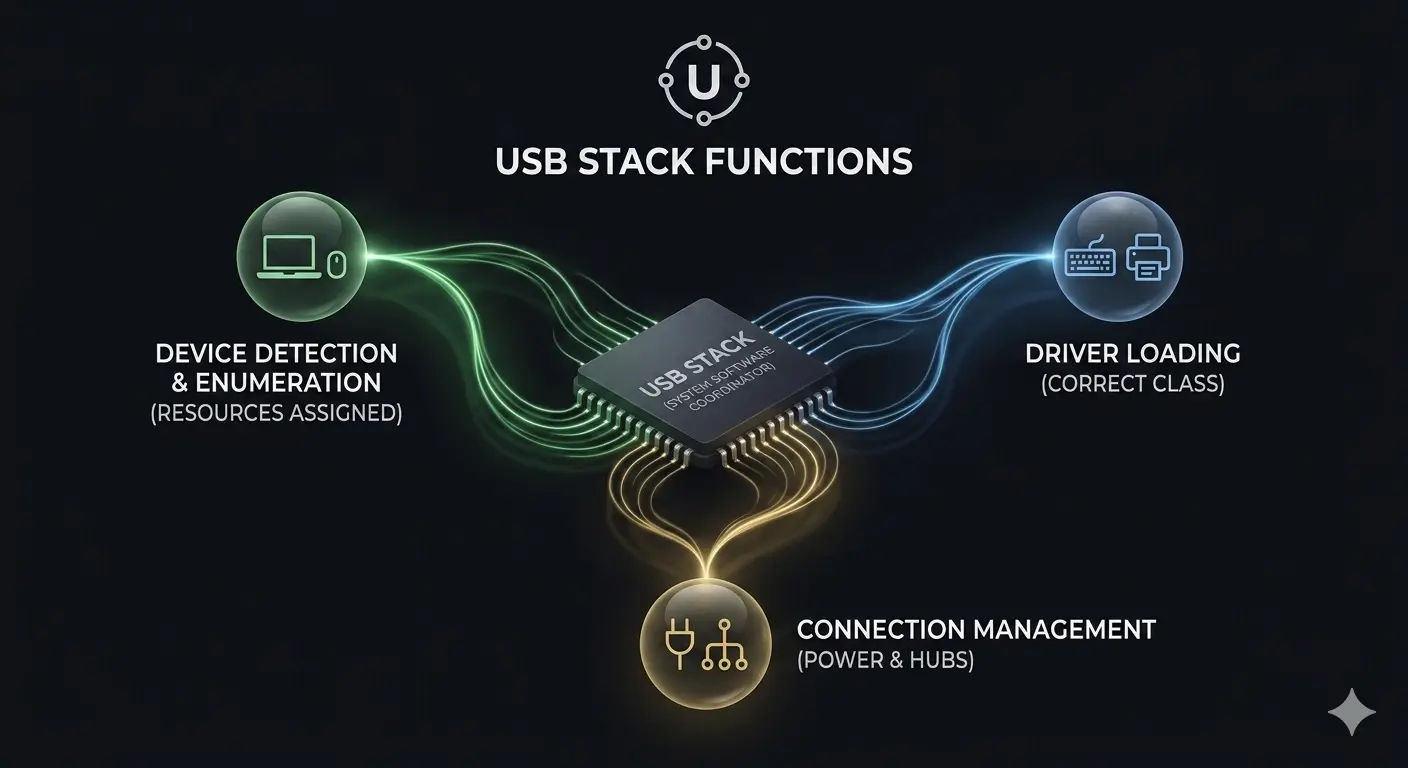
Detects newly connected devices, identifies what they are, and loads the right driver on the fly.
Power & Resource Allocation
Manages power delivery, port resources, hubs, daisy-chaining, and hot-plugging without conflicts.
Cable & Port Troubleshooting
Cables and ports fail far more often than drivers — but a reinstall clears software issues.
Most Common Topics
What the USB Stack Does
When you connect a device, a chain of drivers springs into action: a host-controller driver manages the physical port, a hub driver tracks what's attached, and a class or device driver knows how to speak to that specific kind of hardware — a keyboard, a drive, a camera.
Together they enumerate the device, assign it resources, and load the right software so it simply works, often with no action from you at all.
Detects and enumerates newly connected devices
Loads the correct class or device-specific driver
Manages power delivery and port resources
Supports hubs, daisy-chaining, and hot-plugging
When a Device Isn't Recognised
An unknown-device error, a drive that mounts then vanishes, or a port that charges but won't transfer data — these point to the USB stack rather than the gadget itself.
Trying another port, reseating the cable, and reinstalling the device-specific driver from its maker clears up most cases. A surprising number are simply a tired cable or a port stuck in a low-power state after sleep.
Fix it in five careful steps
- 1.
Swap the cable — Cables fail far more often than ports or drivers. Always test with a known-good cable before investigating anything more complicated.
- 2.
Try a different port — Move the device from a hub or front-panel connector to a USB port directly on the computer. This helps rule out port and hub issues.
- 3.
Reinstall the device driver — Uninstall the device in Device Manager, disconnect it, restart the computer, and then reconnect it so the operating system can detect it again.
- 4.
Update the controller driver — Install the latest chipset or USB controller package from your computer manufacturer's support page. These drivers control how every USB port communicates with connected devices.
- 5.
Disable selective suspend — If the device disconnects after sitting idle, turn off USB Selective Suspend in your power settings to prevent Windows from putting the port to sleep.
If anything here feels out of your depth, that's a normal feeling. A local technician can run this exact routine in minutes, and nothing on this page requires special tools.
Common Device Manager codes
These are the most common Device Manager errors and what they usually mean.
| Code | What It Means In Plain English | The Usual Fix |
|---|---|---|
| Code 28 | No driver is installed for the device. | Install the correct driver from the manufacturer. |
| Code 10 | The device cannot start. | Reinstall the driver and restart the computer. |
| Code 45 | The device isn't currently connected. | Reconnect the device and check cables or power. |
| Code 19 | The device's configuration information is damaged. | Uninstall the device and let Windows reinstall it. |
Frequently Asked Questions
The questions readers ask most about USB devices and drivers.
The computer sees something connected but can't load a matching driver. Try a different port and cable first, then install the device's own driver from the manufacturer.
Usually USB power management putting the port to sleep, or a marginal cable. A current driver plus disabling USB selective suspend for that controller resolves most repeat disconnects.
For storage devices it's still good practice: it flushes pending writes so files aren't corrupted mid-save. For mice, keyboards, and similar devices, just unplug.
Want us to explainanother driver topic?
Our friendly overview covers every major hardware category — from the device on your desk to the chips inside your laptop. Tell us what to write next.