
The Bridge Between Your PC and the Internet
Every page you load, every video you stream, and every call you join passes through a network driver before it ever reaches your screen.
What It Does
Common Symptoms
Quick Fixes
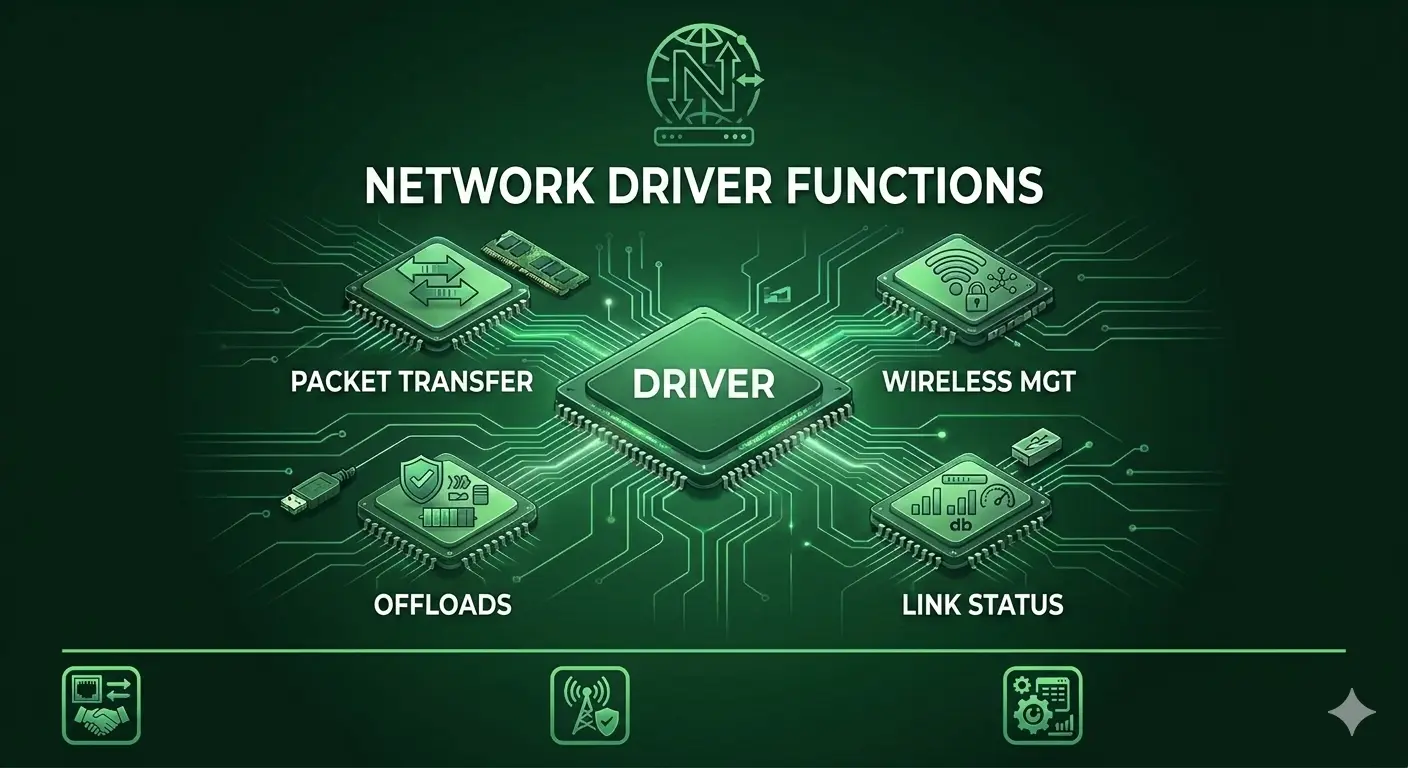
Packet Transport
Moves packets between your OS and the network chip — and manages Wi-Fi association and roaming.
Power Management
The OS can aggressively power down the adapter after sleep — often causing drops unless you disable it.
Performance Features
Implements checksum offload, packet queuing, and reports link speed and signal strength.
Most Common Topics
What a Network Driver Does
A network driver is the software layer that connects your operating system's networking stack to the physical Wi-Fi or Ethernet chip in your machine. It receives packets from the hardware, hands them up to the operating system, and sends outgoing data back down to be transmitted.
On the wireless side it also manages connecting to access points, handling encryption, and adjusting transmission rates as you move around — all without you noticing.
Moves packets between the OS and the network chip
Handles wireless association, authentication, and roaming
Implements features like checksum offload and packet queuing
Reports link speed, signal strength, and connection health
Common Connectivity Frustrations
Wi-Fi that drops every few minutes, slow speeds compared to other devices on the same network, or a connection that refuses to come back after sleep — these are the most common driver-related complaints, and among the most easily fixed.
A fresh driver, paired with a power-management setting that stops the OS from aggressively powering down the network chip, solves most of them. For laptops, your manufacturer's site is almost always the right source, since they tune it for your specific Wi-Fi module.
Fix it in five careful steps
- 1.
Identify the adapter — Open Device Manager → Network adapters and note the exact name of your Wi-Fi or Ethernet adapter.
- 2.
Download the current driver first — For laptops, download the driver from the laptop manufacturer's support page. For desktop adapters, use the network chip manufacturer's site. Do this before uninstalling anything so you still have internet access.
- 3.
Uninstall the old driver — In Device Manager, remove the network adapter and select the option to delete the driver software if it is available.
- 4.
Restart and install — Restart the computer, run the installer you downloaded earlier, and reconnect to your Wi-Fi or Ethernet network.
- 5.
Tame power management — Open the adapter properties and untick "Allow the computer to turn off this device to save power" — one of the most effective fixes for random disconnects and sleep-related network issues.
If anything here feels out of your depth, that's a normal feeling. A local technician can run this exact routine in minutes, and nothing on this page requires special tools.
Common Device Manager codes
These are the most common Device Manager errors and what they usually mean.
| Code | What It Means In Plain English | The Usual Fix |
|---|---|---|
| Code 28 | No driver is installed for the device. | Install the correct driver from the manufacturer. |
| Code 10 | The device cannot start. | Reinstall the driver and restart the computer. |
| Code 45 | The device isn't currently connected. | Reconnect the device and check cables or power. |
| Code 19 | The device's configuration information is damaged. | Uninstall the device and let Windows reinstall it. |
Frequently Asked Questions
The questions readers ask most about Wi-Fi, Ethernet, and network driver issues.
This is often caused by the laptop's wireless adapter running in an aggressive power-saving mode or using an outdated driver. Updating the Wi-Fi driver and disabling unnecessary power-management settings for the network adapter can significantly improve performance and bring speeds closer to what you see on other devices.
It's a common issue, but it can usually be fixed. During sleep, the operating system powers down the wireless adapter to save battery life, and some drivers don't restore the connection properly when the device wakes up. Installing the latest driver and disabling 'Allow the computer to turn off this device to save power' often resolves the problem.
Because Ethernet and Wi-Fi use different hardware and drivers, a working Ethernet connection usually means your internet service and operating system are functioning correctly. The issue is more likely related to the wireless adapter's driver, settings, or hardware rather than the network itself.
Want us to explainanother driver topic?
Our friendly overview covers every major hardware category — from the device on your desk to the chips inside your laptop. Tell us what to write next.