
Where Your GPU Meets the Real World
Every frame on your screen is the result of a quiet conversation between the operating system, the graphics card, and a remarkable piece of software called the graphics driver.
What It Does
Common Symptoms
Quick Fixes
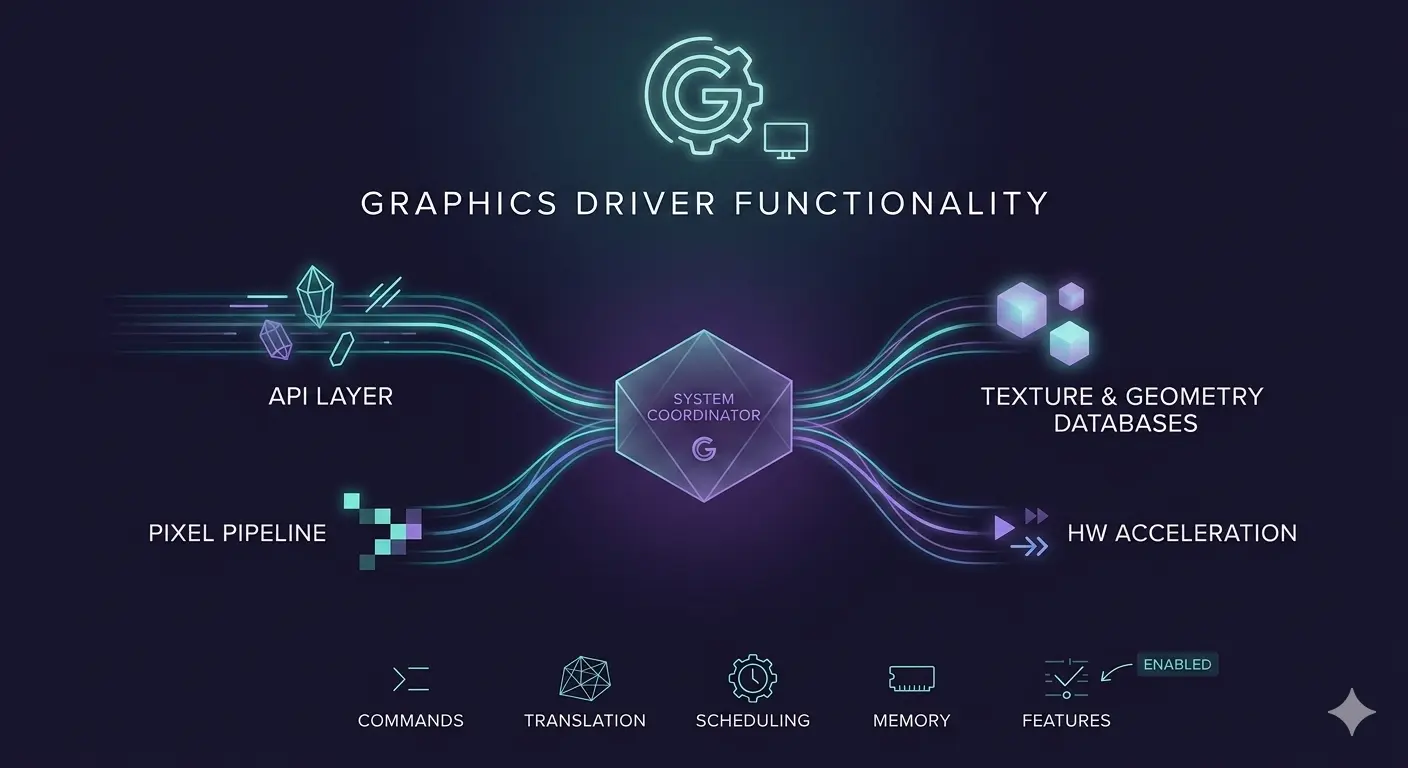
GPU Command Translation
Converts rendering instructions into commands your specific GPU understands.
Frame Scheduling
Manages video memory, coordinates rendering work, and pushes frames to the display on time.
Multi-Monitor & Advanced Features
Handles multi-display layouts, scaling, refresh rates, and hardware video decoding.
Most Common Topics
What a Graphics Driver Does
A graphics driver receives drawing instructions from the operating system and your applications, then translates them into the exact commands your specific GPU understands. It manages memory on the card, schedules rendering work, and pushes finished frames to the display at the right moment.
It also exposes advanced features — hardware video decoding, multiple-monitor layouts, and game-ready optimisations — that applications can ask for without knowing the details of your card.
Translates rendering calls into GPU-specific commands
Manages video memory and the frame buffer
Handles multi-monitor layout, scaling, and refresh
Enables hardware video decode and acceleration
Common Display Frustrations
Flickering, a screen that goes black after waking, stutter in games, or a resolution that won't stick — these are the classic graphics-driver complaints, and they're usually among the most fixable.
A clean reinstall of the latest driver from your graphics card maker resolves the large majority of these issues, because it removes leftovers from previous versions that can quietly conflict. For laptops, your computer maker's site is often the better source, since their build is tuned for your exact panel and power settings.
Fix it in five careful steps
- 1.
Note your exact GPU model — Open Device Manager → Display adapters (or your system information tool) and write down the complete graphics card model name.
- 2.
Download the right driver — Get the latest driver from the GPU manufacturer's official website, or for laptops, use the laptop maker's support page since those drivers are often tuned for the display panel and power limits.
- 3.
Uninstall the current driver — In Device Manager, uninstall the display adapter and select "Delete the driver software for this device" if that option is available.
- 4.
Restart, then install — Restart the computer, run the driver installer you downloaded earlier, and choose the clean or custom installation option when available.
- 5.
Restart and verify — Reboot once more, then confirm that the screen resolution and refresh rate have returned to the display's native values.
If anything here feels out of your depth, that's a normal feeling. A local technician can run this exact routine in minutes, and nothing on this page requires special tools.
Common Device Manager codes
These are the most common Device Manager errors and what they usually mean.
| Code | What It Means In Plain English | The Usual Fix |
|---|---|---|
| Code 28 | No driver is installed for the device. | Install the correct driver from the manufacturer. |
| Code 10 | The device cannot start. | Reinstall the driver and restart the computer. |
| Code 45 | The device isn't currently connected. | Reconnect the device and check cables or power. |
| Code 19 | The device's configuration information is damaged. | Uninstall the device and let Windows reinstall it. |
Frequently Asked Questions
The questions readers ask most about graphics drivers, displays, and monitor issues.
Screen flicker after an update usually means the new graphics driver is conflicting with leftover components from the previous installation, or the display refresh rate has changed. Perform a clean driver reinstall and verify that your monitor is running at its native refresh rate.
Often, yes. The graphics driver is responsible for detecting, configuring, and arranging connected displays. Updating or reinstalling the graphics driver, checking the display cable, and confirming the correct input source on the monitor resolves most multi-monitor detection issues.
If your system is stable and you're not experiencing problems, there's no need to update immediately. Casual users can update every few months or when a specific fix is released. Gamers benefit most from staying current because new game releases often include day-one performance improvements and bug fixes in updated drivers.
Want us to explainanother driver topic?
Our friendly overview covers every major hardware category — from the device on your desk to the chips inside your laptop. Tell us what to write next.