
Printer Drivers,Explained Clearly.
Learn how printer drivers work, troubleshoot issues, and find practical solutions explained in simple language.
500+
Driver Guides
100+
Printer Models
24/7
Knowledge Access
Driver Knowledge Center
Guides & Troubleshooting
1000+
Monthly Readers
So... What Exactly Is a Driver?
Understanding drivers doesn't require a computer science degree. Start with these three simple ideas and you'll understand how hardware and software work together.
Drivers Are The Translators Of Your Computer
Your operating system and your hardware don't naturally speak the same language. A driver acts as the translator between them, ensuring every command is understood correctly.
When you click Print, connect a webcam, adjust your speakers, or launch a game, the driver converts those requests into instructions that the hardware can understand and execute.
Without drivers, your computer might detect hardware, but it wouldn't know how to use it effectively. Drivers make communication possible between software and physical devices.
Quick Summary
- Translates operating system commands.
- Allows hardware and software to communicate.
- Essential for every major device.
Drivers work quietly behind the scenes, but they are one of the most important pieces of software on your computer.
Explore Driver Categories
Learn, troubleshoot and understand every major driver category through simple, practical explanations.
Kernel-Mode Drivers
Low-level drivers with direct hardware and memory access.
User-Mode Drivers
Safer drivers that run separately from the operating system kernel.
Printer Drivers
Installation, updates, compatibility and troubleshooting guides.
Graphics Drivers
GPU updates, gaming performance and display optimization.
Audio Drivers
Fix sound issues and understand audio device communication.
Network Drivers
Wi-Fi, Ethernet and connectivity troubleshooting resources.
Bluetooth Drivers
Pairing, connectivity and Bluetooth device support.
USB Drivers
Device recognition, installation and USB troubleshooting.
Chipset Drivers
The foundation that connects all your hardware together.
Storage Drivers
SSD, HDD, and external storage performance and reliability.
Input Devices
Keyboards, mice, touchpads, and game controller support.
Virtual Device Drivers
Software-created devices used by virtualization and emulation tools.
The bridge betweensoftware and hardware.
Every click, print command, and device action needs a driver working behind the scenes. Drivers translate instructions between your operating system and physical hardware.
Where Do Drivers Actually Live on Your PC?
Spoiler: they're not hiding in some secret folder. Your computer keeps them in a few well-known places — and once you know where to look, you can check, manage, and tidy them up like a pro.

Inside the Device Manager
This is the friendliest place to start on a Windows PC. Right-click the Start button and pick "Device Manager," and a tidy list of every piece of hardware on your machine appears — neatly grouped by category. Click any item and you can see its driver, check its version, update it, roll it back if a recent update caused trouble, or remove it entirely. It's like a backstage pass to the people running the show.
Through Settings & Updates
On modern Windows systems, head to Settings, then Windows Update, then "Advanced options" and look for "Optional updates." Many driver updates quietly arrive here — already tested for your machine. On macOS, drivers are bundled into regular system updates, so just keep your OS current. On Linux, your distribution's package manager (or a built-in "Additional Drivers" tool) does the same job.
The Hardware Maker's Website
Every reputable hardware maker keeps a "Support" or "Drivers" section on its official website where you can download the very latest driver for your exact model. This is the go-to spot when you need a brand-new feature, a performance boost, or a fix for a specific bug. Always download directly from the official site — never from a random pop-up — and double-check the driver matches your operating system version.
How to Know Which Driver You're Actually Using
Curious which driver is in charge of your sound, your screen, or your network? It only takes a few clicks to find out — no special tools required.
On Windows
Open Device Manager, expand any category (say, "Display adapters"), and right-click your device. Choose "Properties," then click the "Driver" tab. You'll instantly see the driver name, the publisher, the date it was released, and the exact version number. Hit "Driver Details" for an even deeper look at every file the driver uses. This is the cleanest way to confirm what's running before you decide to update.

On macOS
Click the system menu, choose "About This Mac," then click "More Info" and "System Report." A detailed window opens with sections for graphics, audio, USB, network, and more. Each section lists the underlying driver (called a "kext" or "extension") along with its version. macOS handles most drivers automatically, so what you'll usually see are clean, system-managed entries.

On Linux
Open a terminal and try friendly commands like `lspci -k` for connected hardware and `lsusb` for USB devices, or `lsmod` to see every driver module currently loaded into the kernel. The output is text-based but surprisingly easy to scan — and it tells you exactly which driver is doing the work.
Common Driver-Related Problems
Understanding these common driver issues helps in diagnosing and resolving hardware and software problems.
Driver Conflicts
Driver conflicts occur when two or more drivers compete for the same hardware resource, such as an interrupt request line, an input/output port address range, or memory-mapped region. This competition causes unpredictable behavior in both performance, or wider system instability. Conflicts most commonly arise when multiple drivers attempt to claim ownership of the same interrupt vector, particularly on older hardware that predates modern interrupt routing standards. Operating systems manage hardware resource allocation through their Plug and Play infrastructure, but certain driver combinations or firmware misconfigurations can still result in conflicting assignments that require manual resolution through device settings or firmware-level interrupt configuration.
Outdated Drivers
Outdated drivers represent one of the most preventable yet frequently encountered sources of hardware and system problems. As operating systems evolve, they introduce new kernel APIs, security requirements, and interface specifications. Drivers that haven't been updated to reflect these changes may fail silently, exhibit reduced performance, or generate compatibility warnings. Graphics drivers are particularly susceptible to becoming obsolete, as new rendering APIs and game engines regularly require driver-level support to function correctly. A GPU running a year-old driver might fail to support newer features like DirectStorage, ray tracing improvements, or AI-accelerated rendering that a current driver would enable, leaving significant performance capability untapped.
Corrupted Driver Files
Driver file corruption can occur due to several causes: incomplete driver installation interrupted by a power failure, disk errors writing driver files to storage, malware that intentionally modifies driver binaries, or disk sectors that develop read errors after the driver was written to them. A corrupted driver may fail to load at all — or it may load but produce incorrect behavior due to modified code or data. Operating systems with protected system directories and driver signature enforcement can detect some forms of corruption, but hardware-level data corruption can be difficult to detect until the corrupted driver is executed. Reinstalling the driver from a known good source resolves most corruption issues.
Missing Drivers After OS Install
After installing a new operating system, certain hardware components may not be recognized or may function only with basic generic drivers that lack the device's full feature set. This happens most often for newer or less common hardware that wasn't included in the operating system's built-in driver library at release time. Without the correct driver, a graphics card might run at low resolution, a network adapter might not connect at full speed, or an audio device might produce distorted sound or no sound at all. In most cases, downloading and installing the appropriate driver from the hardware manufacturer immediately after OS installation resolves these issues completely.
Incompatible Drivers
Incompatible drivers occur when a driver designed for one version of an operating system or hardware model is used with a different version. Installing a 32-bit driver on a 64-bit OS, for example, will almost always fail immediately, but subtler incompatibilities — like a driver written for Windows 10 used on Windows 11 — might appear to work at first but cause instability, crashes, or broken functionality under specific workloads. Hardware vendors certify driver versions for specific OS releases, and using a certified driver is the best way to avoid these problems. Windows often blocks known incompatible drivers from loading entirely to protect system stability.
Signed vs Unsigned Drivers
Driver signing is a verification mechanism that uses digital certificates to confirm that a driver package has been tested and certified by its developer, and that the driver files haven't been altered since they were signed. On modern operating systems, unsigned drivers are either blocked entirely or require special steps to install, because an unsigned driver could be modified malware or contain unstable code. While unsigned drivers from trusted sources can sometimes be used for testing or legacy hardware, they introduce significant security and stability risks. Always prefer signed drivers from the hardware manufacturer or OS vendor whenever possible.
Pick a Hardware Category and Dive In
Each overview is bite-sized, friendly, and written to make sense the very first time you read it. No jargon walls. No paywalls.
Printer Drivers
Why your device needs special software, what goes wrong, and how to keep output painless across home, office, and shared setups.
Graphics Drivers
How GPUs, displays, and modern apps stay in sync — and why a tiny driver update can transform game performance.
Audio Drivers
The quiet software shaping every chime, voice call, and music track that comes out of your speakers and headphones.
Network Drivers
The bridge between your operating system and the wired or wireless chip that connects you to the wider internet.
USB & Devices
How keyboards, mice, drives, webcams, and controllers get recognised the instant you plug them in — and what to try when they don't.
System Drivers
The chipset, CPU, and storage drivers you never see — but always feel — making your machine boot fast and run smoothly.

A Friendly Voice in a Noisy Tech World
We are a small, independent education project built around one stubborn idea — technology should not feel intimidating. Every overview on this site is written to make sense the first time you read it, whether you are a complete beginner or someone who already knows their way around a kernel debugger.
No sponsorships. No affiliate links. No "instant driver updater" nonsense. Just clear, honest explanations of how things actually work.
- Independent and free to read, always
- Plain-English first, technical accuracy second to none
- Privacy-respecting — no aggressive trackers or sold data
Understand Every Type of Driver
Explore the different kinds of drivers that make your hardware work—from kernel-mode foundations to virtual devices.
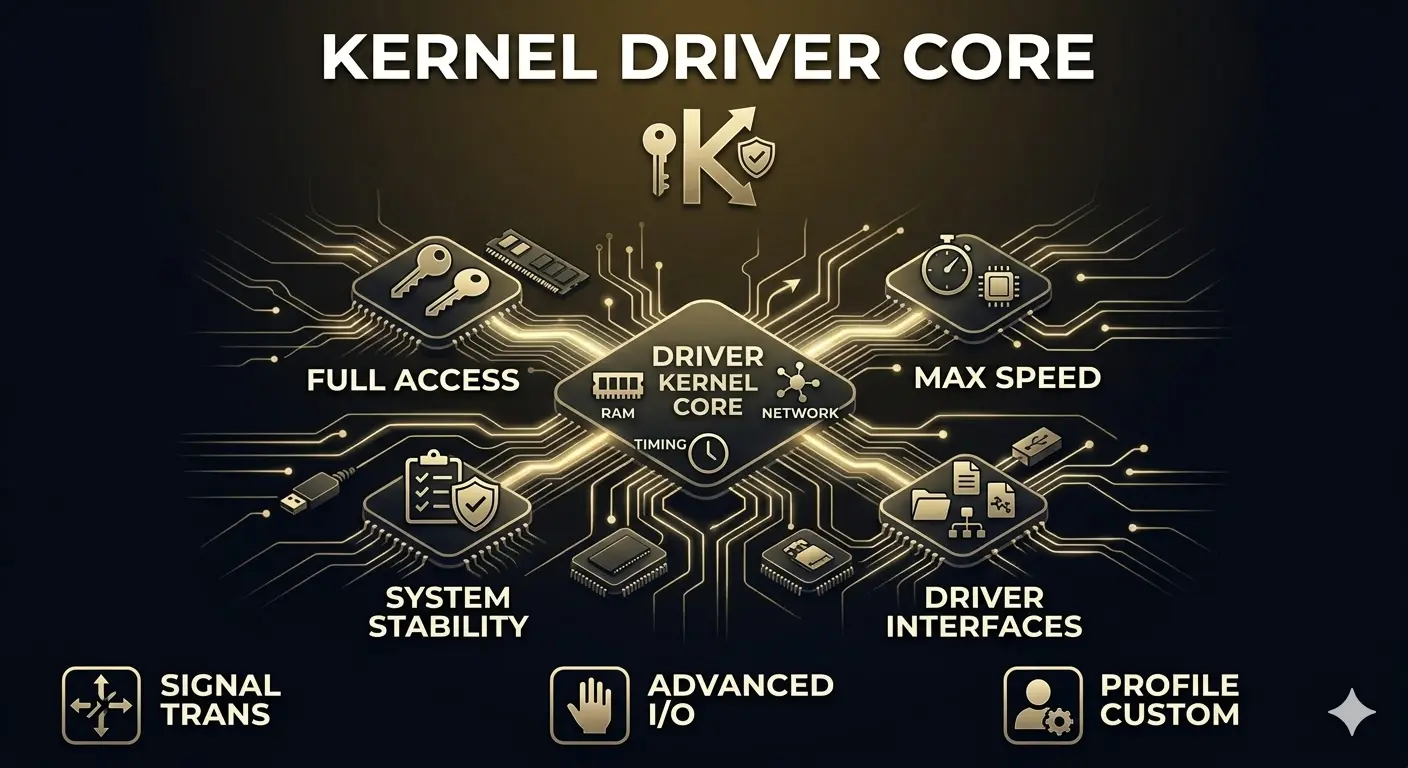
Kernel-Mode Drivers
Kernel-mode drivers work at the operating system's most trusted level, with direct access to hardware, memory, and system resources. This makes them essential for tasks that demand maximum performance and low latency, like file systems and network protocols, but also means issues here can affect system stability.
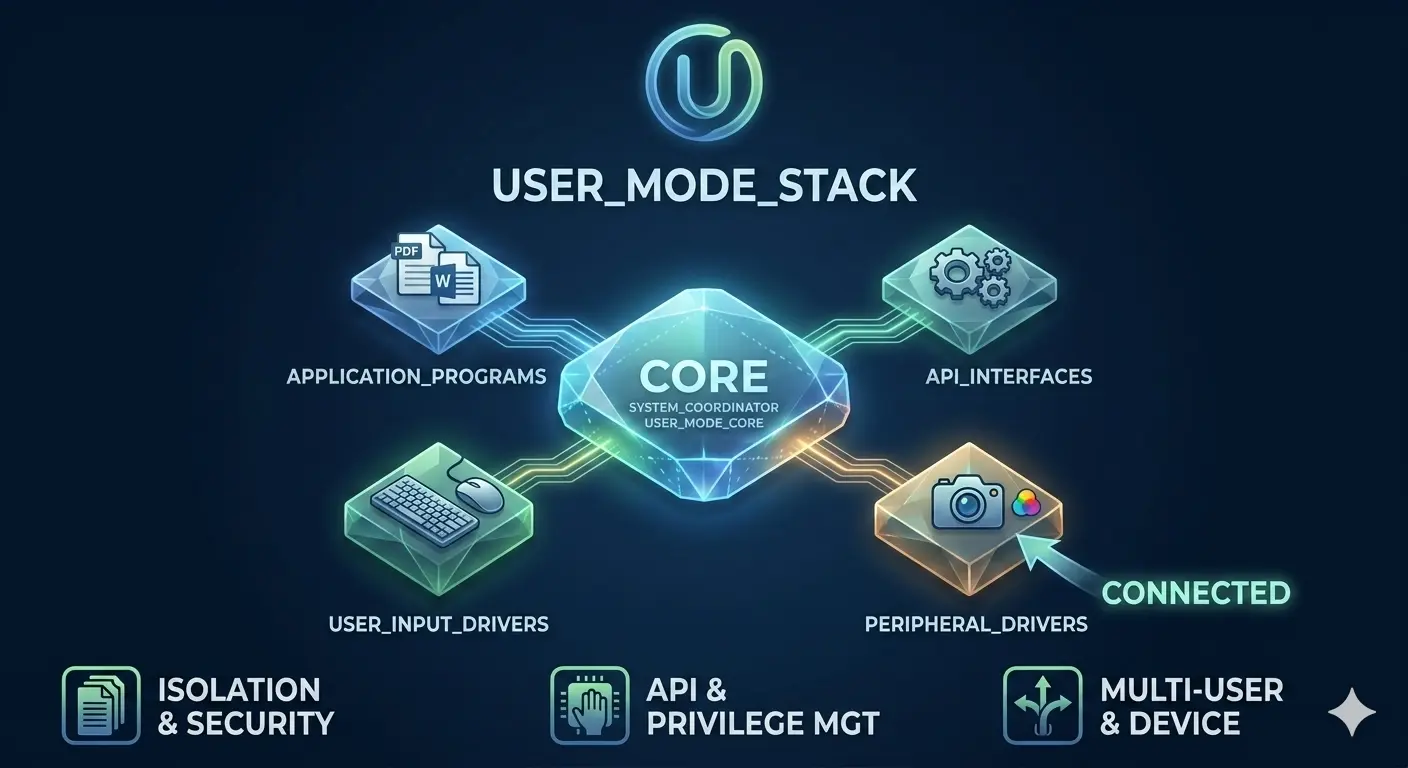
User-Mode Drivers
User-mode drivers operate in a safer, isolated part of the system, separated from the core OS. If something goes wrong, the driver can crash without taking the whole system down. Devices like webcams, scanners, and many USB peripherals often use user-mode drivers.
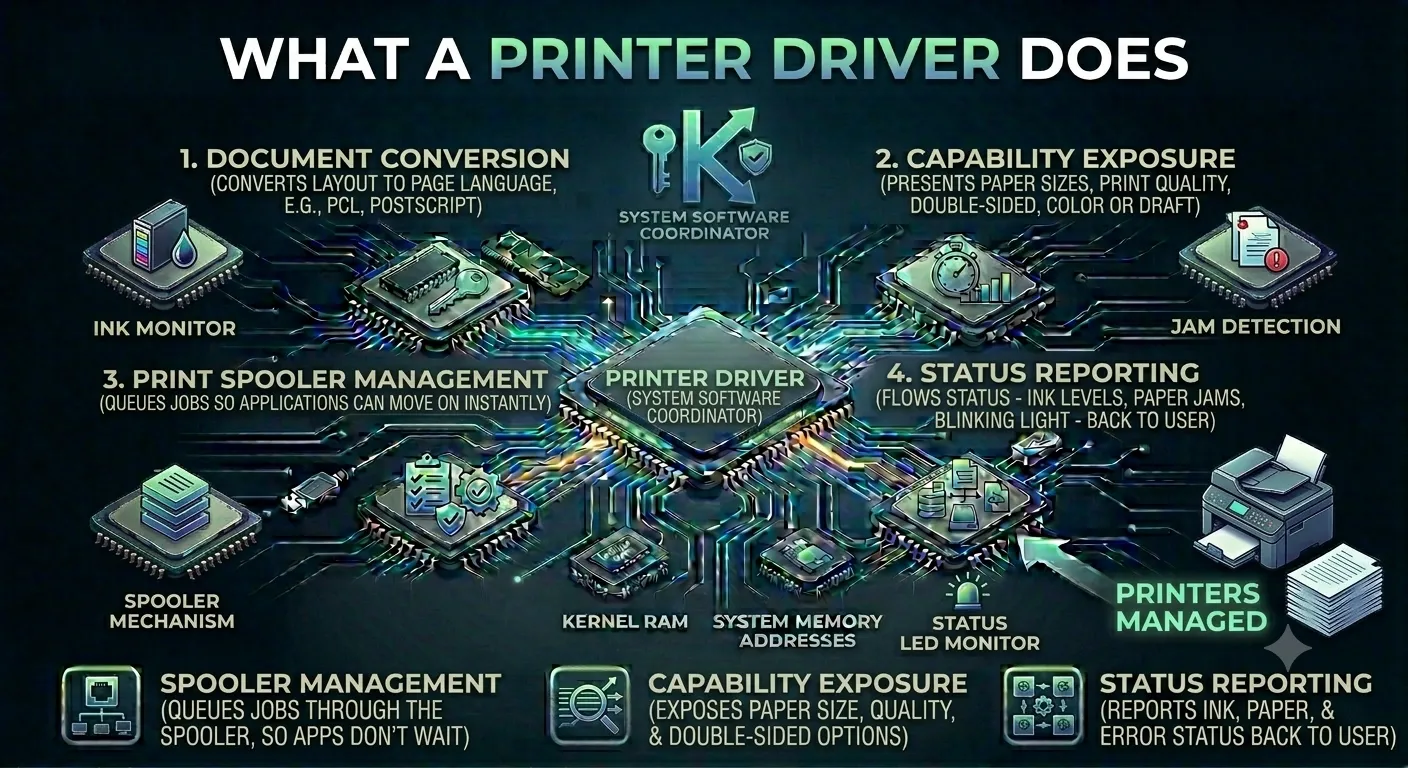
Printer & Output Drivers
Printer and output drivers translate digital documents into instructions that physical hardware can understand—whether that's a printer, plotter, or label maker. They handle everything from color calibration and paper size to duplex printing and document collation.
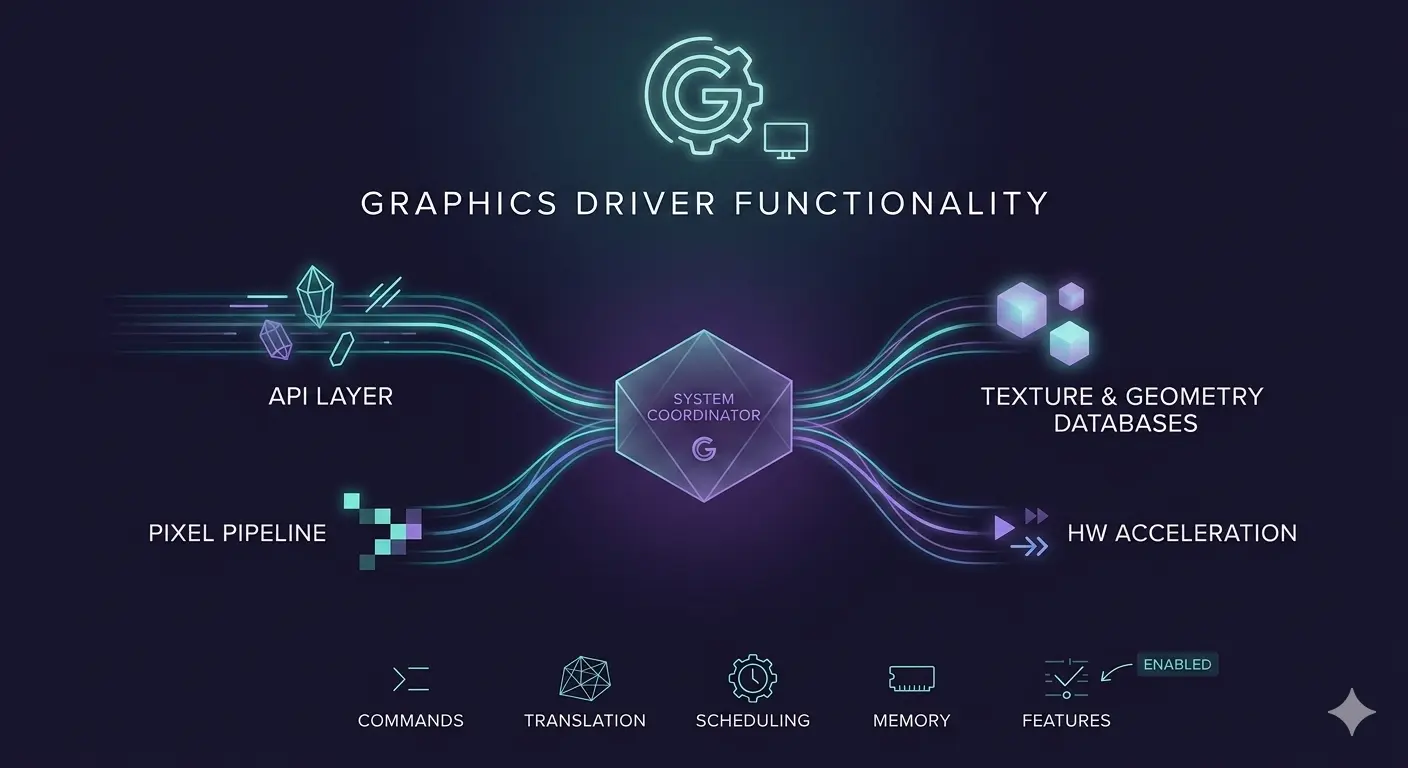
Graphics & Display Drivers
Graphics drivers are the workhorses behind everything you see on screen. They manage GPU memory, coordinate rendering across thousands of cores, handle refresh rates and display settings, and expose APIs for games and creative software.
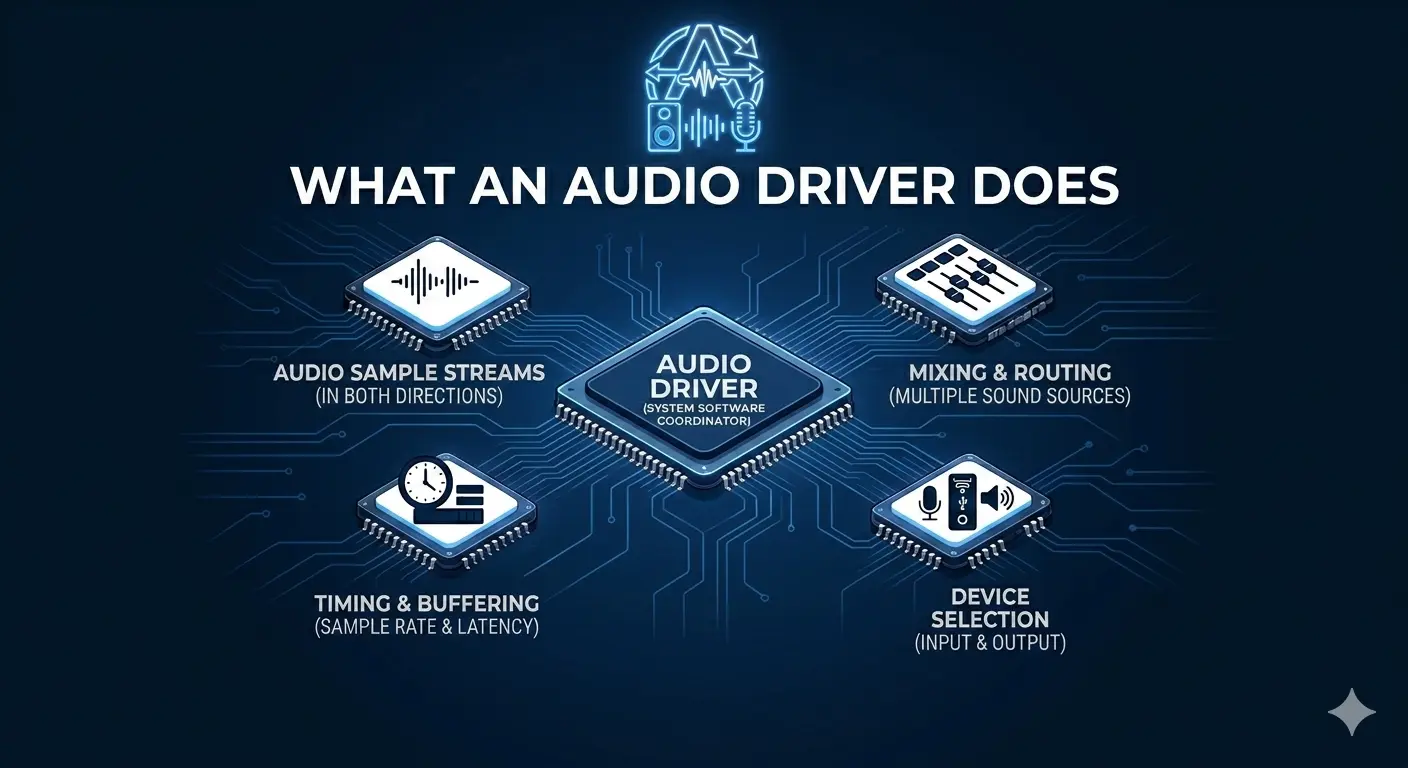
Audio Drivers
Audio drivers handle the flow of sound between your OS and audio hardware. They mix multiple streams, apply effects like EQ or spatial audio, convert between digital and analog signals, and manage power for speakers and microphones.
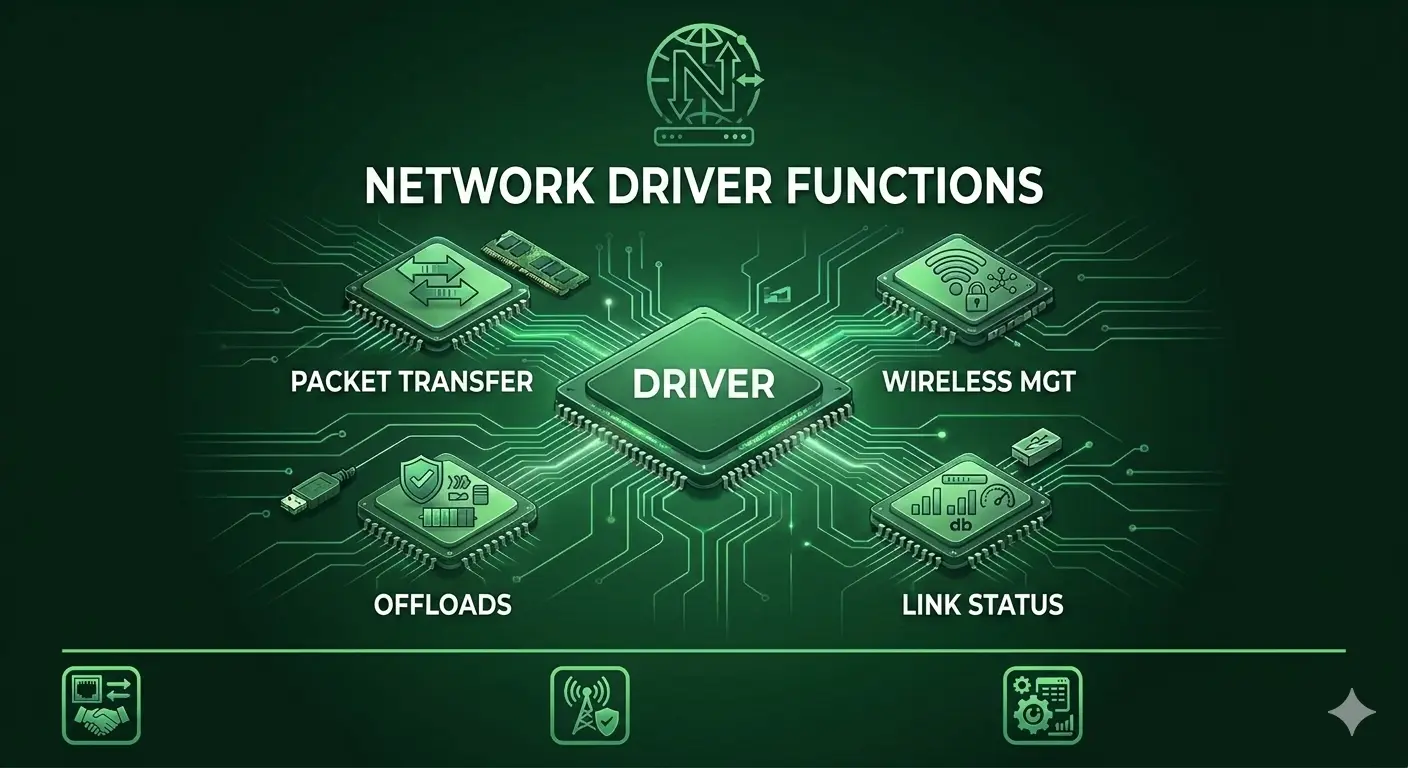
Network Drivers
Network drivers connect your computer to the world, managing wired and wireless connections. They handle high-speed data transmission, offload work to your network card, and manage Wi-Fi security and signal quality.
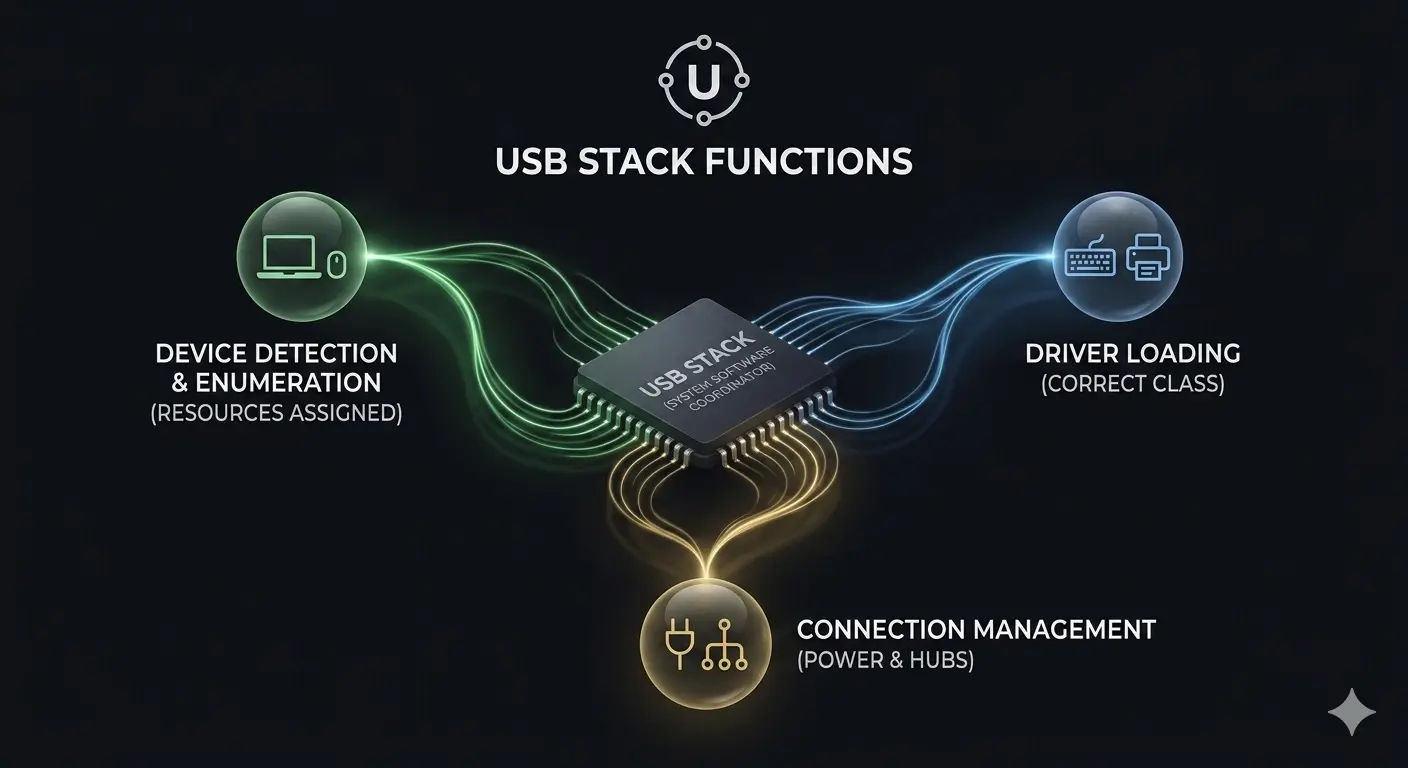
USB & Peripheral Drivers
USB drivers form a layered stack that manages everything you plug into a USB port—from keyboards and mice to external drives. They handle device detection, power management, and hot-plugging so you can connect devices on the fly.
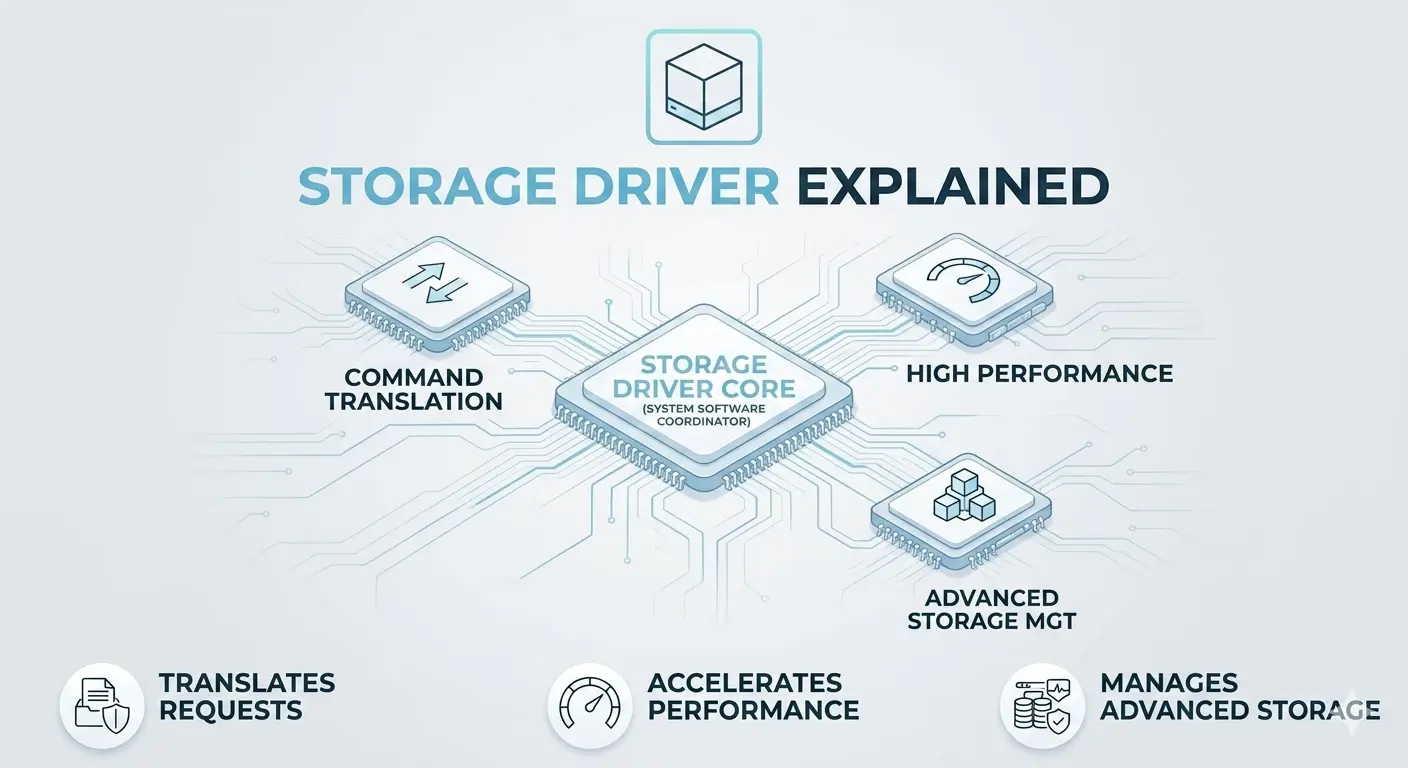
Storage Drivers
Storage drivers manage your hard drives, SSDs, and external storage. They translate file requests into hardware commands, optimize performance for flash storage, and handle reliability features like error correction and health monitoring.
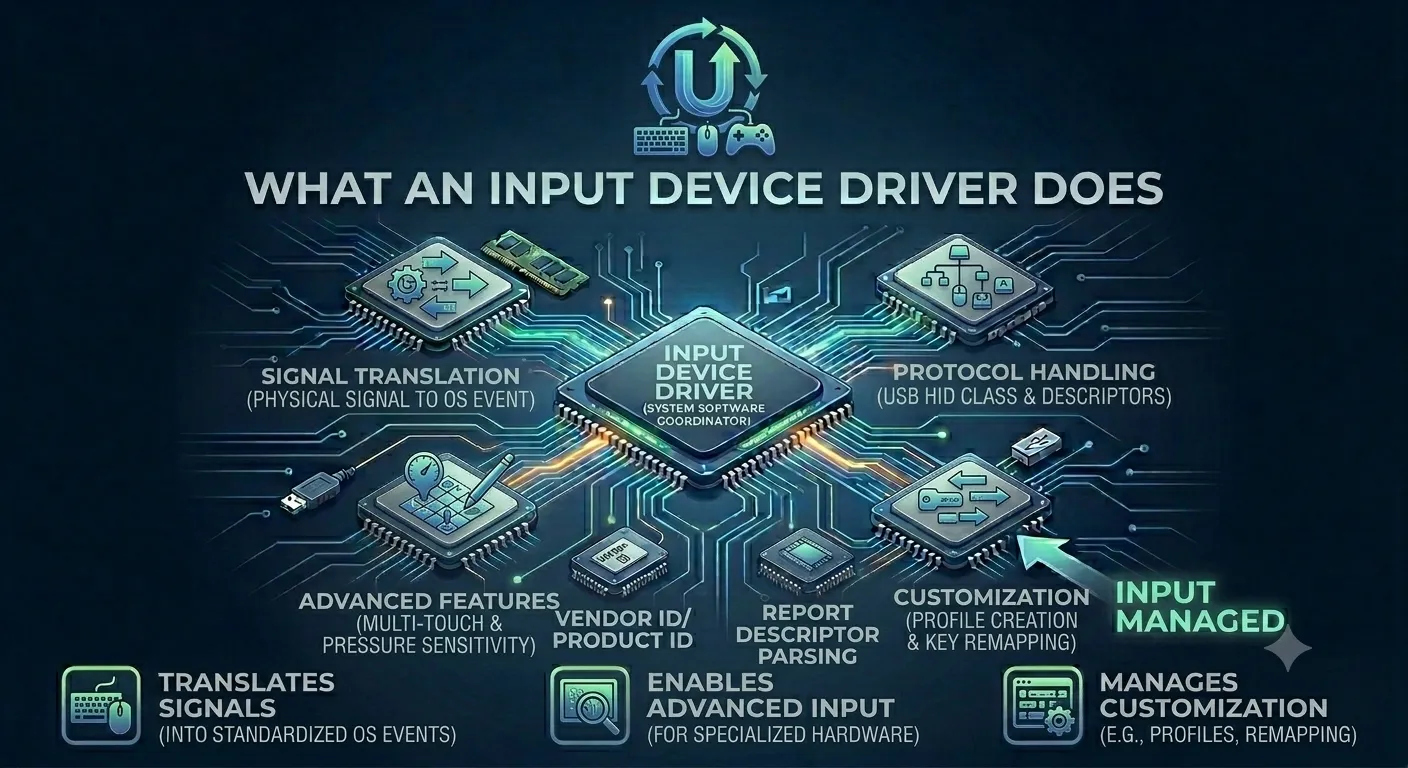
Input Device Drivers
Input device drivers translate your physical interactions—typing, clicking, touching—into events the OS understands. They handle keyboards, mice, touchpads, game controllers, and more, including advanced features like gestures and pressure sensitivity.
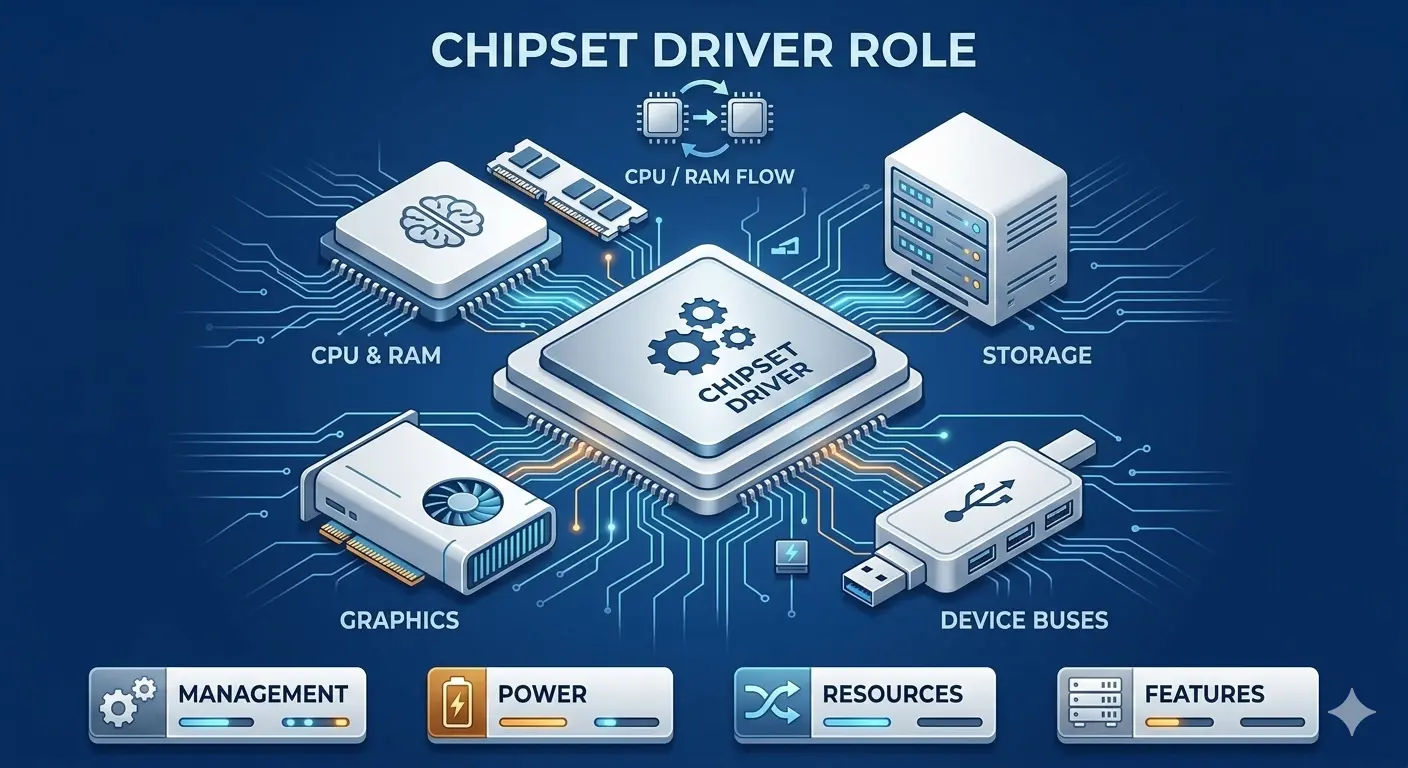
Chipset Drivers
Chipset drivers are the foundation of your system, managing how your CPU talks to RAM, storage, and other components. They're critical for performance, stability, and enabling features like power management and virtualization.
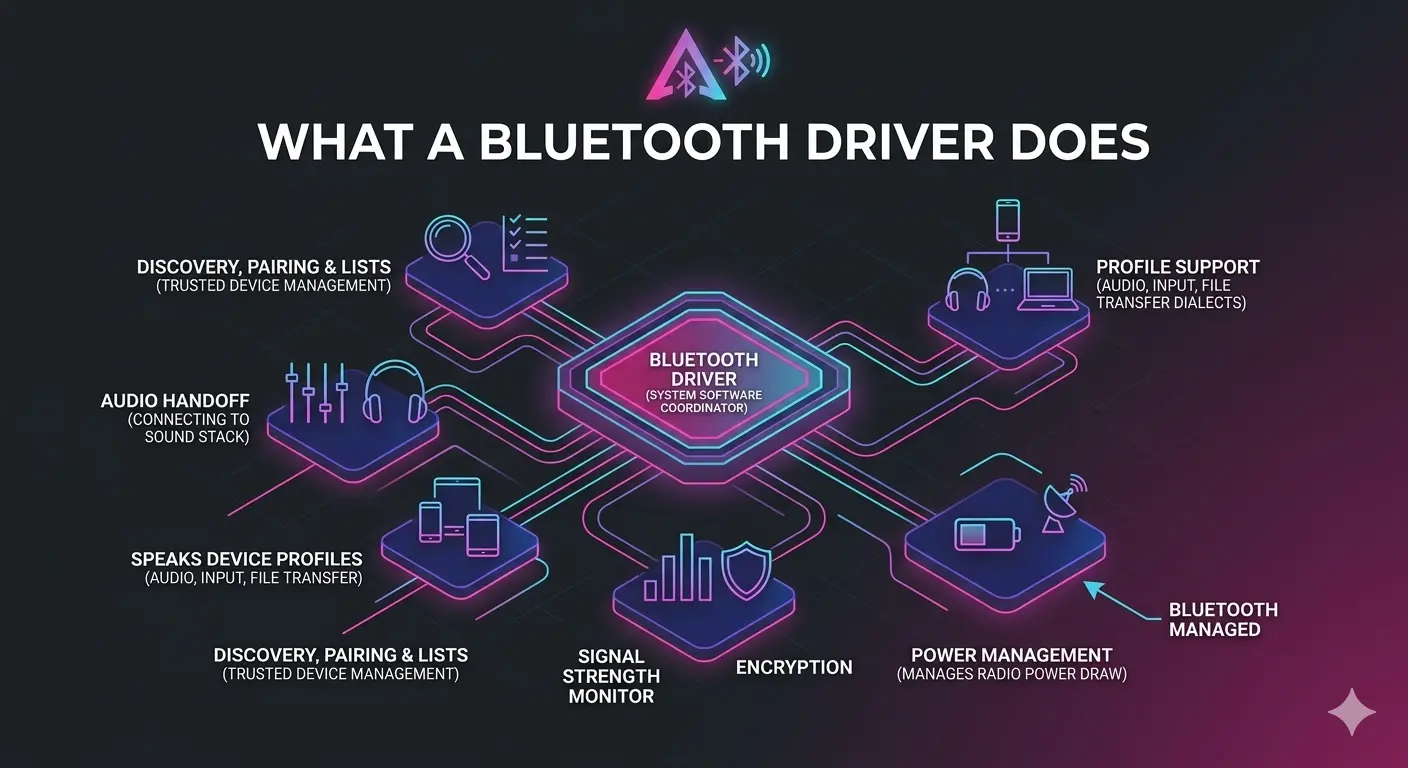
Bluetooth Drivers
Bluetooth drivers manage short-range wireless connections to headphones, speakers, keyboards, and smart devices. They handle the complex Bluetooth stack, including pairing, audio streaming, and low-energy devices like fitness trackers.
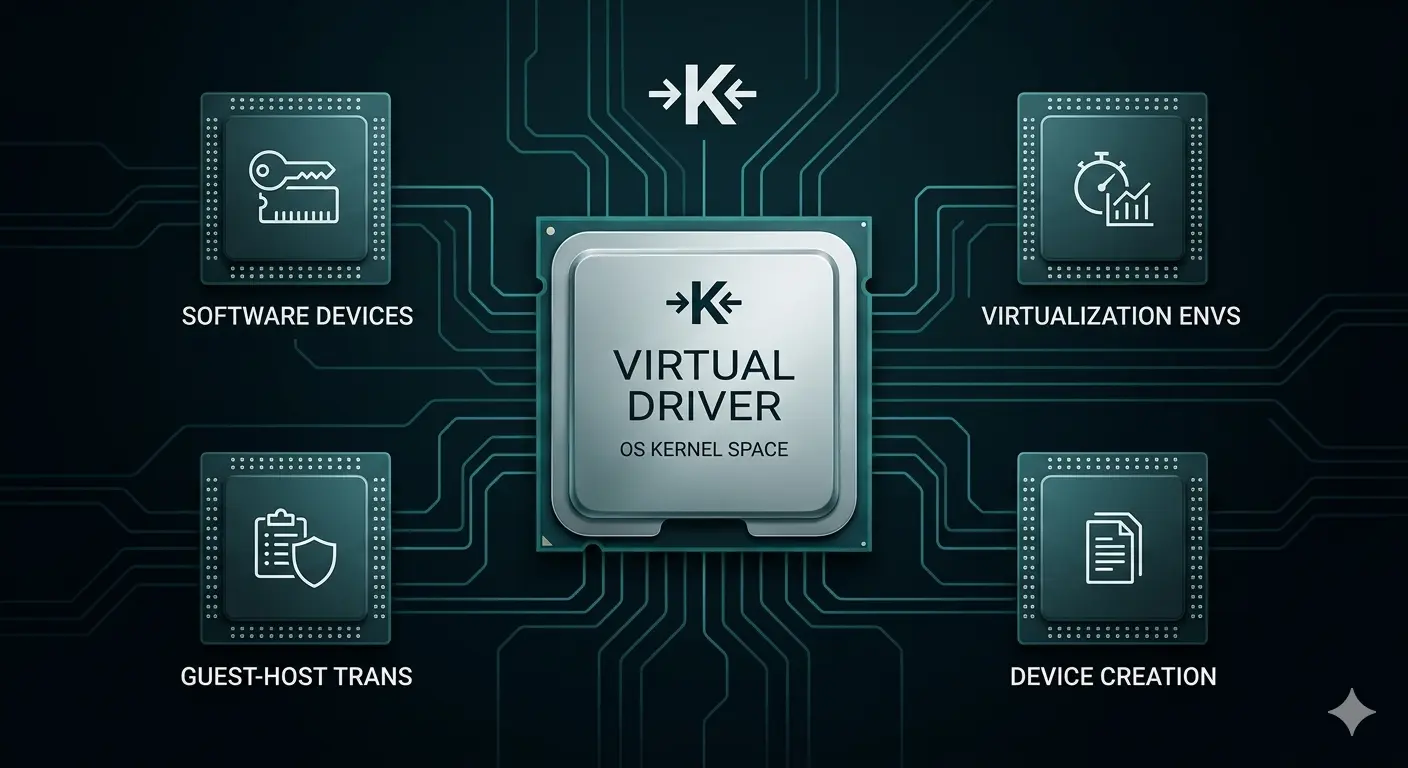
Virtual Device Drivers
Virtual drivers create software-only devices that act like real hardware. They're used in virtual machines, VPNs, and emulators, translating guest OS requests into host actions and providing isolated, secure environments.
11
Driver Families Explained
60+
Plain-English Guides
12
Blog Articles Published
Common First Questions
The questions readers ask most before exploring our guides.
No. We are an educational site only. The safest source for any driver is always your hardware manufacturer's official support page or your operating system's built-in update tool. We explain what to look for, never host files.
No. PC Driver Info is fully independent, with no sponsorship or endorsement from any vendor, which is exactly why we can stay neutral and plain-spoken.
If something is broken, head to the Knowledge hub and try the universal fixes first. If you're just curious, pick the driver family that matches your hardware and read the overview.
Want us to explainanother driver topic?
Our friendly overview covers every major hardware category — from the device on your desk to the chips inside your laptop. Tell us what to write next.