
The Foundation That Holds Your System Together
Chipset drivers are the quiet heroes of your computer. They teach your operating system exactly how your motherboard is wired and how all the pieces should communicate.
What It Does
Common Symptoms
Quick Fixes
Hardware Communication Hub
Manages the connection between your processor, storage, USB ports, and other components.
Power Management
Controls power states for efficient energy use and proper sleep/wake behavior.
Performance Tuning
Unlocks the full potential of your motherboard's features and capabilities.
Most Common Topics
What a Chipset Driver Does
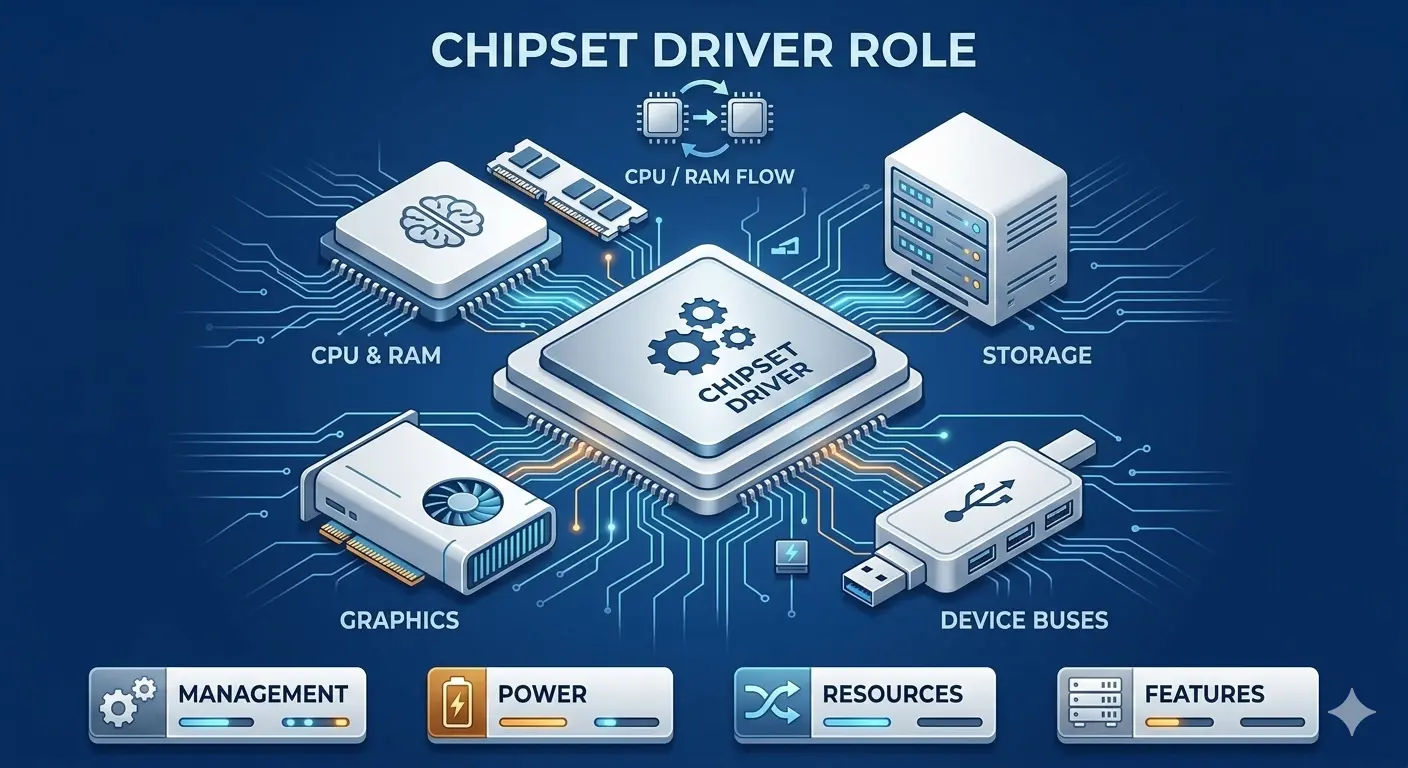
Chipset drivers are foundational system software components that manage the motherboard's chipset — the collection of integrated circuits that coordinate communication between the CPU, RAM, storage controllers, and device buses. Unlike device-specific drivers, chipset drivers affect the entire system's performance and stability because they govern how all components talk to each other.
A modern desktop or laptop motherboard's chipset controls the PCI Express lanes that connect graphics cards, NVMe SSDs, and USB controllers to the processor. The chipset driver configures power management states for these buses, manages the bus arbitration that prevents two devices from transmitting simultaneously, and enables advanced features like SR-IOV (Single Root I/O Virtualization) for virtual machine environments.
Manages communication between the CPU, RAM, and all other components
Configures power states and bus arbitration to prevent conflicts
Enables advanced features like virtualization support and PCIe lanes
Installing or updating it is one of the most important maintenance tasks
Why Chipset Drivers Matter More Than You Think
Chipset drivers don’t get much attention, but they’re the foundation of your system. They teach your operating system exactly how your motherboard is wired, which devices are connected, and how they should talk to each other.
When something feels “off” across multiple devices — like USB ports acting weird, sleep not working, or general slowness after an OS update — it’s often the chipset driver. Installing the latest package from your motherboard or laptop maker usually fixes it.
Get your chipset drivers right in five steps
- 1.
Identify your hardware — Find your motherboard model (for desktops) or laptop model number. This is usually printed on the box, in the manual, or in system information.
- 2.
Visit the manufacturer support site — Go to the official support page for your exact model and download the latest chipset driver package for your operating system.
- 3.
Install the package — Run the downloaded installer and follow the prompts. Reboot your computer when finished to ensure all changes take effect.
- 4.
Check device manager — Open Device Manager and verify there are no yellow exclamation marks indicating unknown or problematic devices.
- 5.
Test functionality — Test USB ports, sleep/wake behavior, and general system performance to confirm everything is working properly.
If anything here feels out of your depth, that's a normal feeling. A local technician can run this exact routine in minutes, and nothing on this page requires special tools.
Common Device Manager codes
These are the most common Device Manager errors and what they usually mean.
| Code | What It Means In Plain English | The Usual Fix |
|---|---|---|
| Code 28 | No driver is installed for the device. | Install the correct driver from the manufacturer. |
| Code 10 | The device cannot start. | Reinstall the driver and restart the computer. |
| Code 45 | The device isn't currently connected. | Reconnect the device and check cables or power. |
| Code 19 | The device's configuration information is damaged. | Uninstall the device and let Windows reinstall it. |
Frequently Asked Questions
The questions readers ask most about chipset drivers and system stability.
For basic functionality, your OS has generic drivers, but they're not optimized. Installing the manufacturer's chipset package enables proper power management, full USB speed, and correct device identification.
Chipset drivers change infrequently. Update them when you notice issues, after a major OS upgrade, or when the manufacturer releases an update that fixes something you care about.
Always get chipset drivers directly from your motherboard or laptop manufacturer's support page for your exact model — never from third-party sites.
Want us to explainanother driver topic?
Our friendly overview covers every major hardware category — from the device on your desk to the chips inside your laptop. Tell us what to write next.