
The Drivers That Connect Your Hands to Your Computer
From typing an email to playing a game, input device drivers translate your physical actions into digital signals your computer can understand.
What It Does
Common Symptoms
Quick Fixes
Precise Input
Ensures every keystroke, mouse movement, and touchpad gesture is registered accurately.
Gaming Features
Enables programmable buttons, RGB lighting, and low-latency input for controllers and gaming mice.
Device Customization
Allows remapping keys, adjusting sensitivity, and creating profiles for different uses.
Most Common Topics
What an Input Device Driver Does
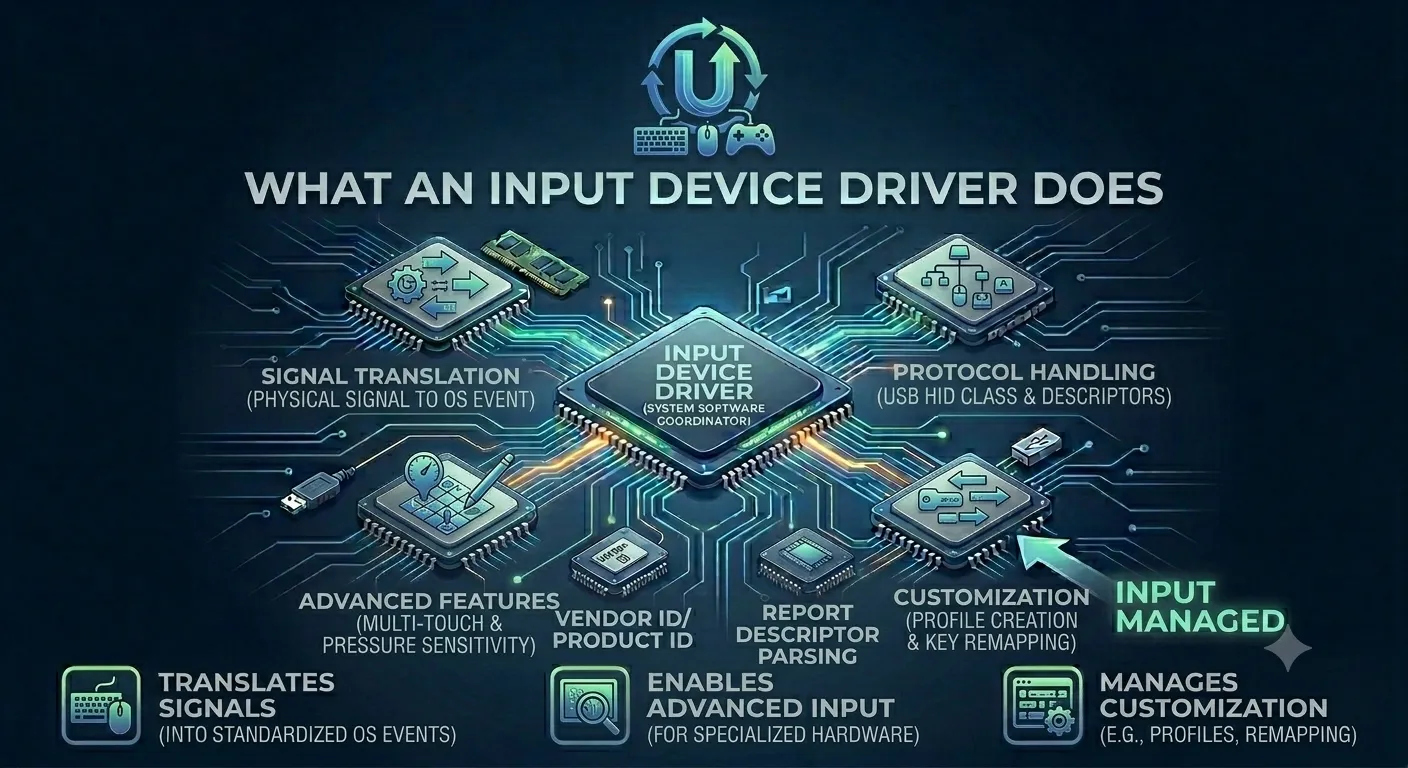
Input device drivers facilitate communication between the operating system and the wide variety of devices through which users interact with their computers. Keyboards, mice, touchpads, trackballs, graphics tablets, game controllers, and touchscreens all require drivers that translate their physical signals into standardized events that the OS and applications can consume.
Many input devices use the USB Human Interface Device (HID) class protocol, a standardized USB specification that defines how keyboards, mice, and similar devices report their state to the host system. The HID protocol describes device capabilities through report descriptors — structured binary documents that explain the format of data packets the device will send. A keyboard's report descriptor specifies which bits represent which keys, and the HID class driver parses incoming reports using this descriptor to generate key press and release events.
Translates physical signals from keyboards, mice, and other devices into events the OS understands
Uses the standard HID protocol for most basic input devices
Handles advanced features like pressure sensitivity and multi-touch for specialized hardware
Allows customization like key remapping and profile creation
Input Drivers: Your Connection to the Machine
Every time you type, click, or move a controller, an input driver is translating that physical action into something your computer understands. When these drivers are outdated or misconfigured, your devices can feel unresponsive or behave unpredictably.
For basic keyboards and mice, generic drivers work fine, but installing the manufacturer’s driver unlocks special features like macro keys, RGB customization, and sensitivity adjustments. For gaming, this can make a real difference.
Get your input devices working in five steps
- 1.
Check physical connection — For wired devices, unplug and replug the USB cable. For wireless devices, check batteries and re-pair if necessary.
- 2.
Try a different port — Test the device on a different USB port to rule out a faulty port or hub.
- 3.
Reinstall the driver — Uninstall the device in Device Manager, restart your computer, and let Windows reinstall the driver automatically or install the manufacturer’s latest driver.
- 4.
Test on another system — Try the device on another computer to determine if the issue is with the device itself or your system.
- 5.
Install manufacturer software — For advanced features, download and install the official software from the device manufacturer's website.
If anything here feels out of your depth, that's a normal feeling. A local technician can run this exact routine in minutes, and nothing on this page requires special tools.
Common Device Manager codes
These are the most common Device Manager errors and what they usually mean.
| Code | What It Means In Plain English | The Usual Fix |
|---|---|---|
| Code 28 | No driver is installed for the device. | Install the correct driver from the manufacturer. |
| Code 10 | The device cannot start. | Reinstall the driver and restart the computer. |
| Code 45 | The device isn't currently connected. | Reconnect the device and check cables or power. |
| Code 19 | The device's configuration information is damaged. | Uninstall the device and let Windows reinstall it. |
Frequently Asked Questions
The questions readers ask most about keyboard, mouse, touchpad, and controller drivers.
First, try a different USB port or restart your computer. If it's a wireless keyboard, check the batteries or re-pair it. If it still doesn't work, reinstall the keyboard driver or try the keyboard on another computer to rule out hardware failure.
This is often caused by a dirty mouse sensor, a bad mouse pad, or outdated drivers. Clean the sensor, try a different surface, and install the latest mouse driver from the manufacturer.
Basic functionality works without special drivers, but you'll need the manufacturer's software to unlock advanced features like programmable buttons, RGB lighting, and custom profiles.
Want us to explainanother driver topic?
Our friendly overview covers every major hardware category — from the device on your desk to the chips inside your laptop. Tell us what to write next.