
The Software That Keeps Your Data Safe and Fast
From booting your system to loading your files, storage drivers work behind the scenes to ensure your data is accessible quickly and reliably.
What It Does
Common Symptoms
Quick Fixes
Fast Data Transfer
Optimizes read/write speeds for SSDs, HDDs, and external storage devices.
Reliability Features
Enables error correction, SMART monitoring, and power-loss protection.
Advanced Technologies
Supports NVMe, RAID, TRIM, and other modern storage features.
Most Common Topics
What a Storage Driver Does
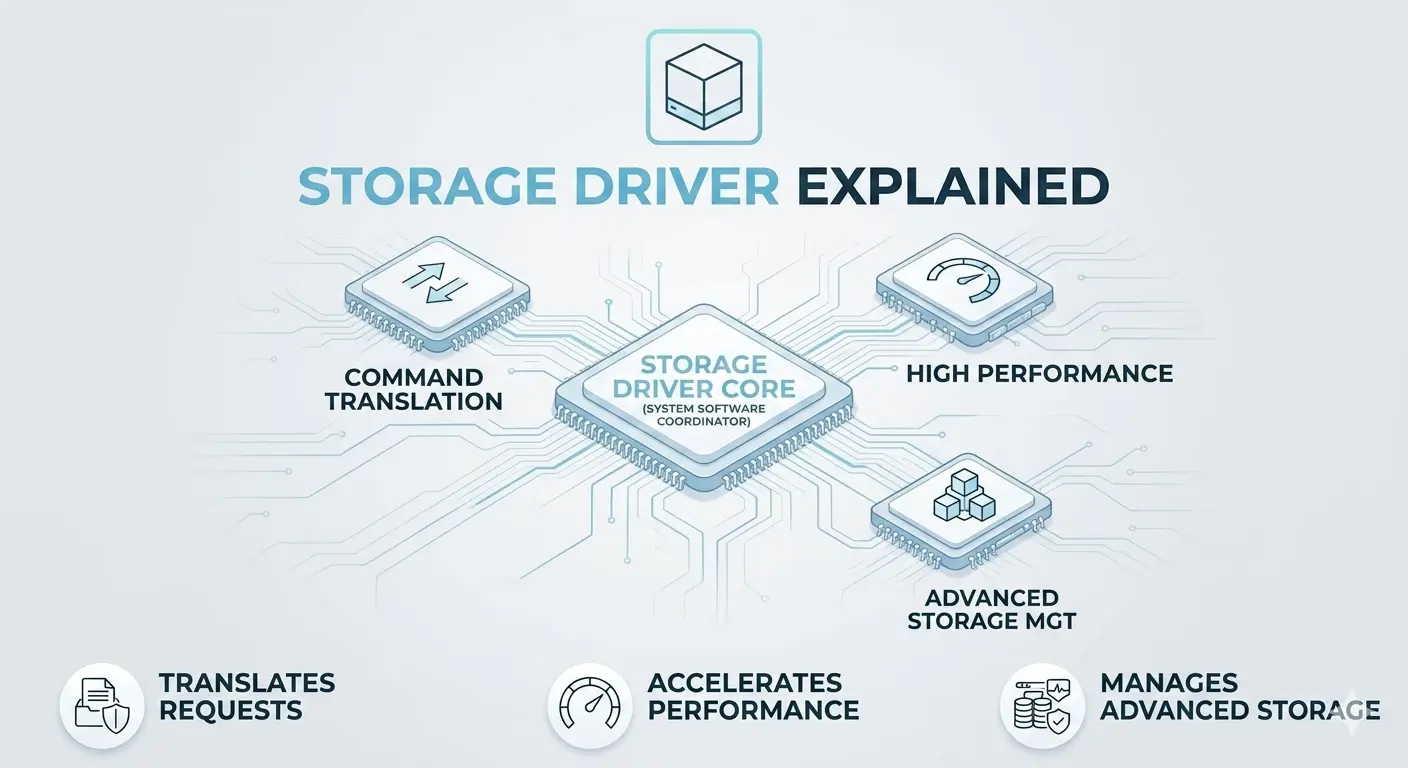
Storage drivers manage communication between the operating system and data storage devices, including hard disk drives (HDDs), solid-state drives (SSDs), NVMe devices, optical drives, and network-attached storage controllers. These drivers are responsible for translating file system read and write requests into the specific command sets understood by the storage hardware.
For traditional storage devices, drivers implement the Advanced Host Controller Interface protocol, which defines how software communicates with storage controllers. Non-Volatile Memory Express devices use a newer, purpose-built protocol designed for the low-latency, high-parallelism nature of flash storage. These drivers support thousands of simultaneous input and output queues, compared to the single queue model of legacy disk interfaces, allowing modern solid-state drives to approach their theoretical maximum performance.
Translates file system requests into the storage hardware's command set
Enables NVMe and AHCI interfaces for maximum performance
Implements reliability features like error correction and SMART monitoring
Supports RAID, TRIM, and other advanced storage technologies
Storage Drivers: Speed and Reliability Combined
Storage drivers are what make your files open quickly and your system boot fast. They handle the communication between your operating system and your SSD, HDD, or external drive, ensuring data moves safely and efficiently.
When a drive feels slower than it should, or isn’t being detected properly, updating or reinstalling the storage driver is often the solution. For NVMe SSDs, the right driver can unlock noticeable speed improvements.
Keep your storage running smoothly in five steps
- 1.
Check physical connections — For internal drives, ensure power and data cables are securely connected. For external drives, try a different cable or USB port.
- 2.
Update storage drivers — Download and install the latest storage drivers from your motherboard, laptop, or drive manufacturer’s support site.
- 3.
Verify drive health — Use built-in tools or manufacturer software to check your drive’s SMART status and overall health.
- 4.
Enable performance features — Make sure TRIM is enabled for SSDs and that your drive is using the correct interface (AHCI for SATA, NVMe for M.2).
- 5.
Test with another system — If possible, test the drive on another computer to rule out hardware failure vs. driver/configuration issues.
If anything here feels out of your depth, that's a normal feeling. A local technician can run this exact routine in minutes, and nothing on this page requires special tools.
Common Device Manager codes
These are the most common Device Manager errors and what they usually mean.
| Code | What It Means In Plain English | The Usual Fix |
|---|---|---|
| Code 28 | No driver is installed for the device. | Install the correct driver from the manufacturer. |
| Code 10 | The device cannot start. | Reinstall the driver and restart the computer. |
| Code 45 | The device isn't currently connected. | Reconnect the device and check cables or power. |
| Code 19 | The device's configuration information is damaged. | Uninstall the device and let Windows reinstall it. |
Frequently Asked Questions
The questions readers ask most about storage drivers, SSDs, HDDs, and data safety.
Make sure you're using the latest storage driver for your drive and motherboard. Also verify that your SSD is connected to the correct port (M.2 or SATA) and that TRIM is enabled for optimal performance.
Try a different USB port or cable first. If that doesn't work, check Disk Management (Windows) or Disk Utility (Mac) to see if the drive is detected but not formatted, and reinstall the storage driver if needed.
For built-in storage, use the driver from your motherboard or laptop manufacturer. For external drives, use the driver from the drive manufacturer if they provide one.
Want us to explainanother driver topic?
Our friendly overview covers every major hardware category — from the device on your desk to the chips inside your laptop. Tell us what to write next.