
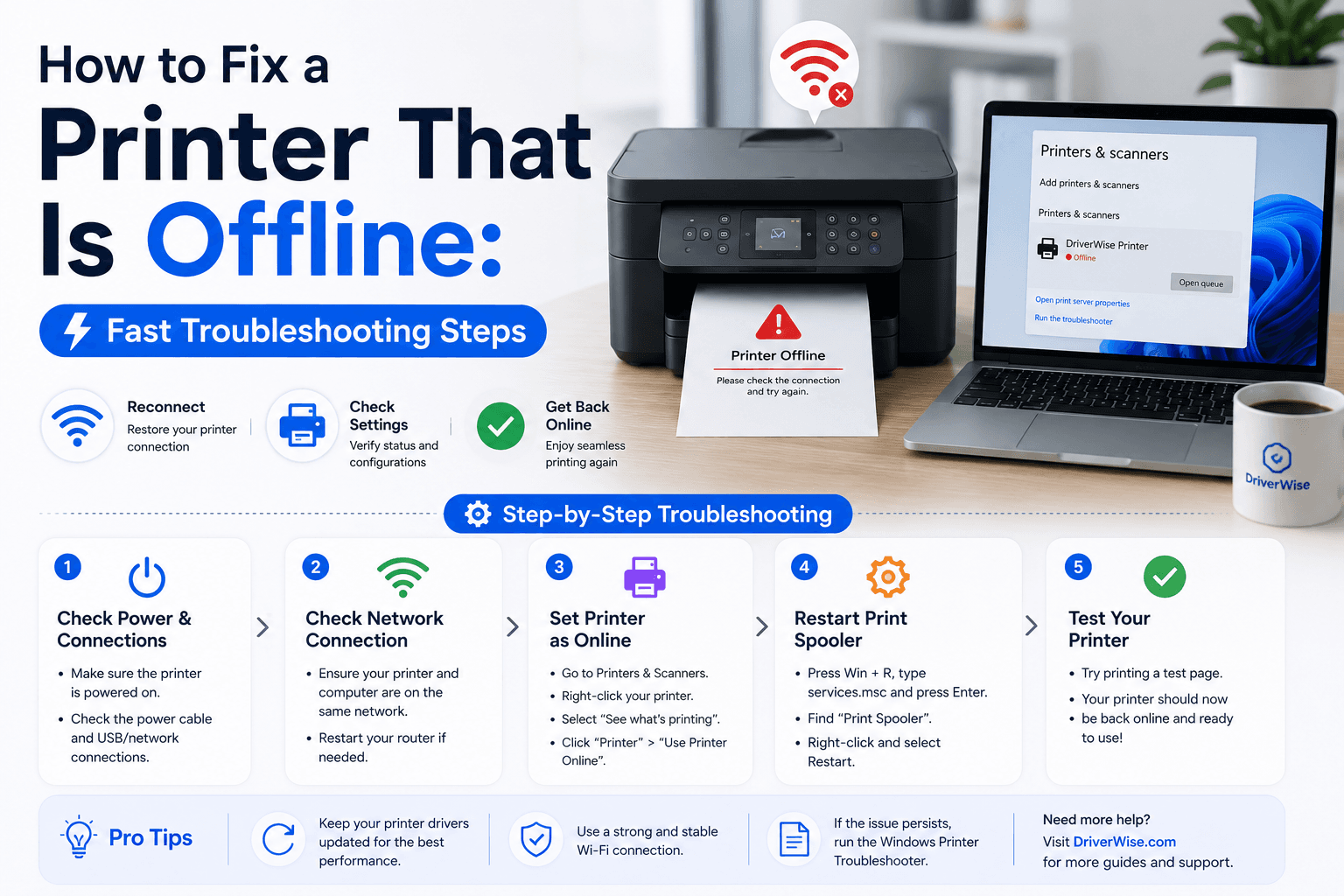
If your printer shows as offline, this guide explains the most common causes and the quickest fixes to get it working again.
Why printers go offline
A printer may appear offline when the cable is loose, the Wi-Fi connection drops, the printer is asleep, or the computer is no longer communicating with it. In other cases, the problem is a simple driver issue or a stuck print queue.
Check the physical connection first
If your printer uses a USB cable, make sure it is firmly connected to the computer and the printer. If it is wireless, confirm that the printer is still connected to the same Wi-Fi network as your computer. A loose connection or a router restart can make the printer look offline even when it is powered on.
Restart the printer and computer
A quick restart often clears temporary communication issues. Turn the printer off, wait about 30 seconds, and turn it back on. Then restart the computer so the operating system can reconnect to the printer properly.
Set the printer online and clear the queue
On Windows, open the printer queue and check whether the printer is set to use offline mode. Clear any stuck jobs and try printing again. On Mac, open the print queue and remove any jobs that are pending or failed.
Reinstall the printer or update the driver
If the printer still shows as offline, remove it from your device settings and add it again. If the issue continues, reinstall the printer driver from the official manufacturer website. This often solves the problem when the current driver is outdated or corrupted.
End of Article
Written and maintained by the PC Driver Info editorial team