
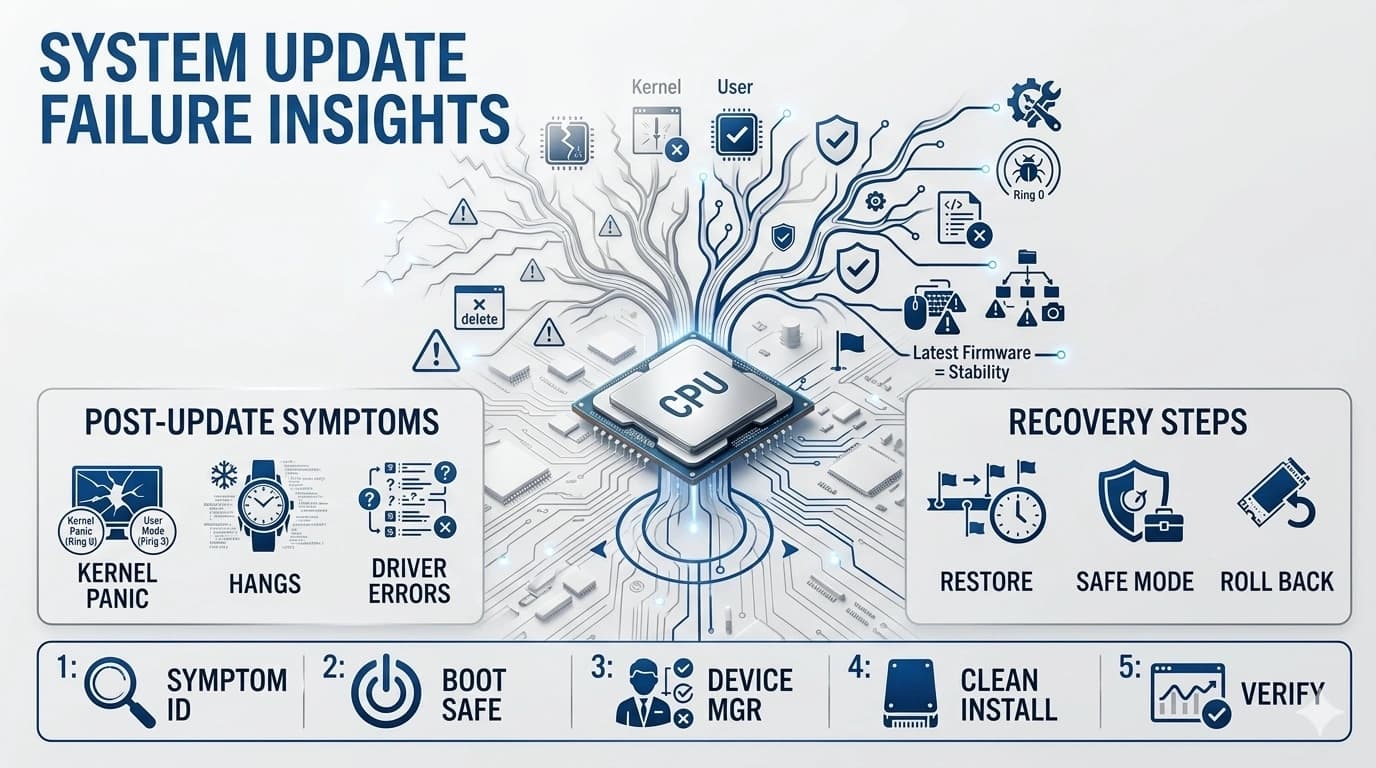
A driver update was supposed to fix things, but now your device doesn't work. Here's what happened and how to fix it quickly.
What usually went wrong
Driver updates can break things in a few common ways. Sometimes the new driver isn't fully compatible with your specific hardware or OS version. Sometimes the installer didn't clean up old files properly, leaving conflicts. And sometimes the new driver has a bug that the manufacturer missed in testing.
Step one: roll it back
The fastest fix for a bad driver update is usually rolling back to the previous version. On Windows, use Device Manager to find the device, open its properties, and look for the "Roll Back Driver" button. On Mac, you can use Time Machine to restore your system to before the update.
Step two: install clean
If you still want to try the new driver, uninstall the current one completely first. Use the manufacturer's uninstall tool if they have one, or use Device Manager to uninstall and check "Delete the driver software for this device" to remove old files. Then install the new driver fresh.
Step three: check for a newer version
If you got the driver from Windows Update, try going directly to the manufacturer's website — they might have a newer, fixed version that addresses your specific issue.
End of Article
Written and maintained by the PC Driver Info editorial team