
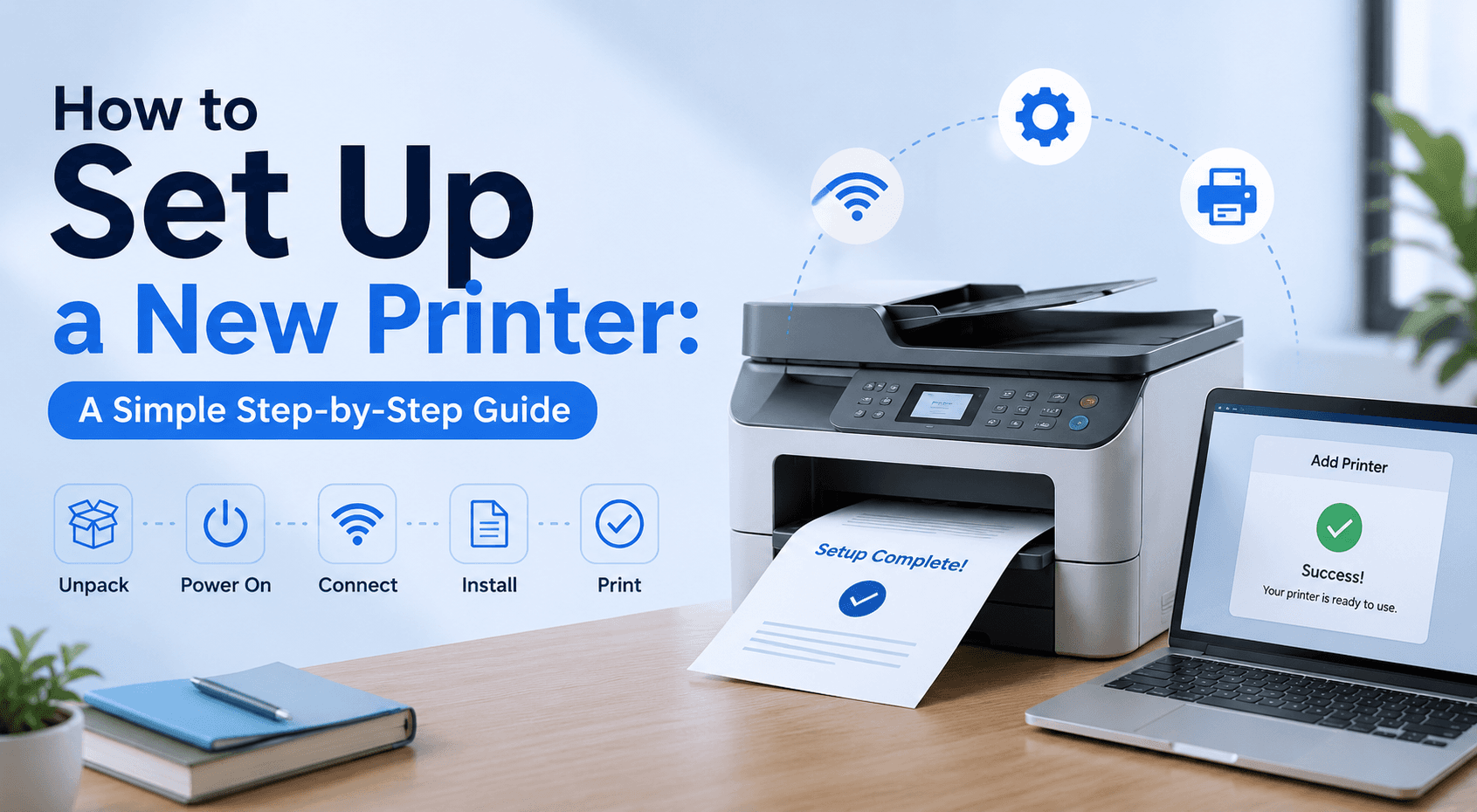
Learn how to set up a new printer from scratch, install the right driver, connect it properly, and print your first page without stress.
Unbox the printer and prepare the workspace
Start by placing the printer on a flat, stable surface near your computer and a power outlet. Remove the packing materials, tape, and protective covers, then load paper into the tray and insert the ink or toner cartridges if your printer requires them. A clean setup makes the rest of the installation much easier.
Connect the printer to power and your computer
Plug the printer into a power source and turn it on. If you are using a USB cable, connect it directly to your computer before installing anything else. If your printer supports wireless printing, you can connect it to Wi-Fi later after the initial setup is complete.
Install the correct printer driver
The printer driver is the software that lets your computer talk to the printer. The safest option is to download the driver from the printer manufacturer's official support page and choose the version that matches your operating system. Windows and Mac users can also use built-in setup tools, but manufacturer drivers often add better printing features and fewer compatibility issues.
Add the printer to your device
On Windows, open Settings, go to Bluetooth & devices, and select Printers & scanners. Choose Add device or Add manually if the printer does not appear automatically. On Mac, open System Settings, go to Printers & Scanners, and click the plus sign to add the printer. Once it appears, select it and confirm the default printer if desired.
Print a test page and adjust settings
After the printer is added, print a test page to verify that the connection works. If the printout is blurry, faded, or incomplete, check the ink or toner levels, paper tray placement, and print quality settings. This is also a good time to set your default paper size and print preferences.
Common setup mistakes to avoid
Do not skip the driver installation, especially if the printer is not being detected. Also avoid using random driver download websites, because they can install the wrong software or unwanted extras. If the printer still fails to appear, try restarting both the printer and the computer before trying again.
End of Article
Written and maintained by the PC Driver Info editorial team