
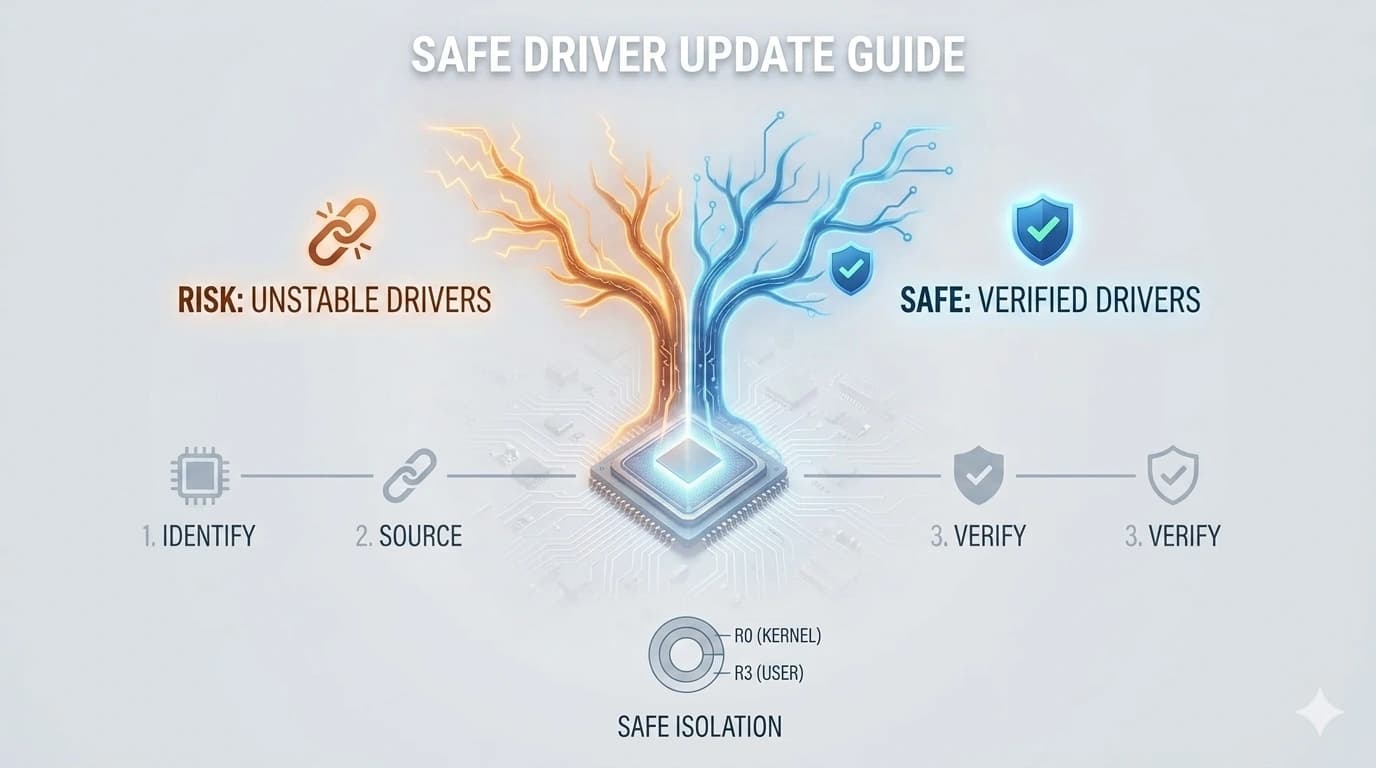
Updating drivers can fix issues and improve performance — but it can also cause new problems if done wrong. Here's the safe way to do it.
Start with why you're updating
Only update a driver if you have a reason: a specific bug you're trying to fix, a new feature you want, or a security update. If everything is working perfectly, there's no urgent need to update just for the sake of updating.
Get drivers from the right place
Always download drivers directly from the manufacturer's official support site. Avoid third-party "driver updater" tools — they often bundle unwanted software, show scary warnings to pressure you into paying, and sometimes install the wrong drivers entirely.
Create a restore point first
Before installing a new driver, create a system restore point (Windows) or make sure Time Machine is up to date (Mac). This gives you a safe way to roll back if the new driver causes problems.
Install clean when possible
Many driver installers have a "clean install" or "factory reset" option that removes old driver files before installing new ones. This prevents conflicts between old and new versions and is especially recommended for graphics and audio drivers.
Test after updating
After installing the new driver, restart your computer and test the device. Make sure everything works as expected. If you notice new issues, use your restore point or roll back the driver through Device Manager (Windows) or System Report (Mac).
End of Article
Written and maintained by the PC Driver Info editorial team